


Tutoriels d'installation IPTV
Sélectionnez votre appareil ci-dessous pour afficher un guide d'installation étape par étape clair et détaillé.
Avant de commencer
Nous fournissons uniquement l'abonnement. Notre application V12Mate est gratuite sur Android et Firestick, et vous êtes libre d'utiliser le lecteur compatible de votre choix. Certaines applications tierces peuvent nécessiter leur propre licence après leur période d'essai.
Le fonctionnement est similaire à une carte SIM : votre abonnement est la carte SIM et l'application de lecture est le téléphone dans lequel vous l'insérez.
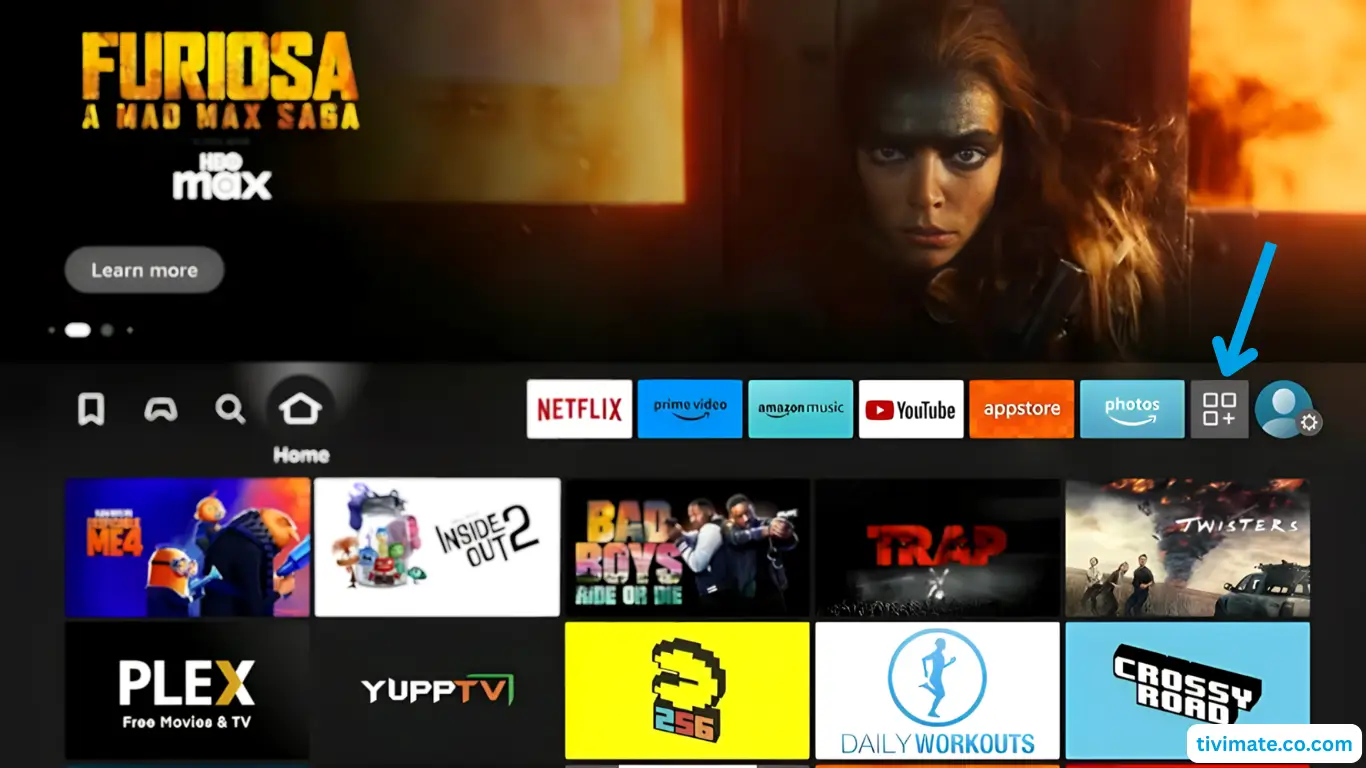
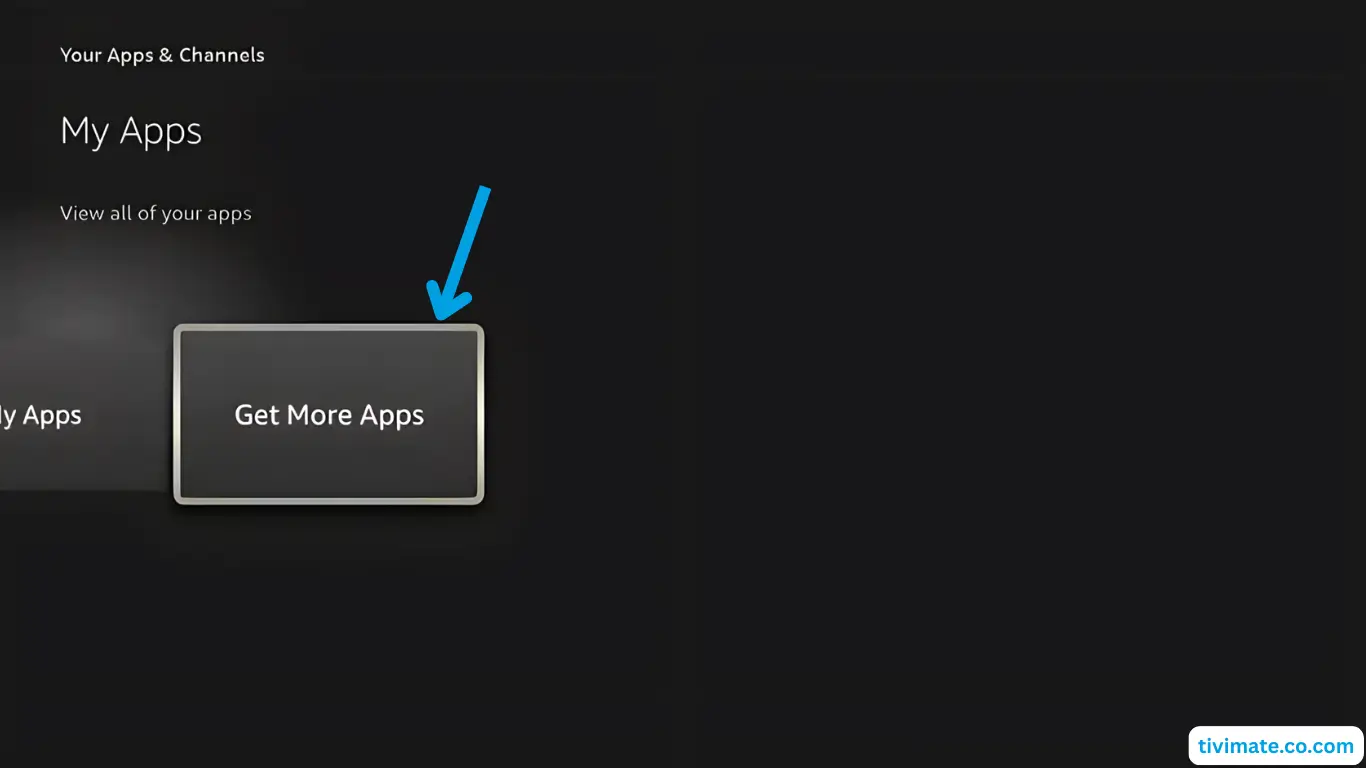
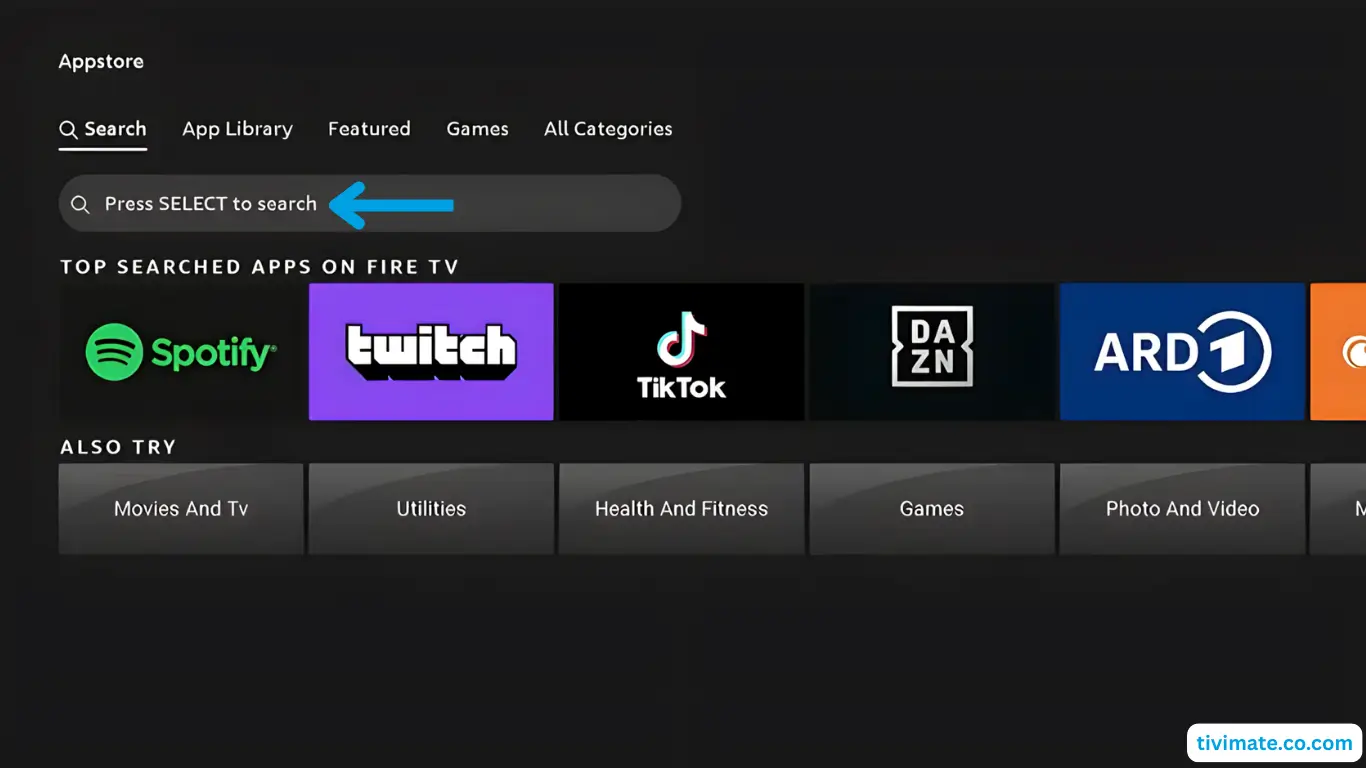
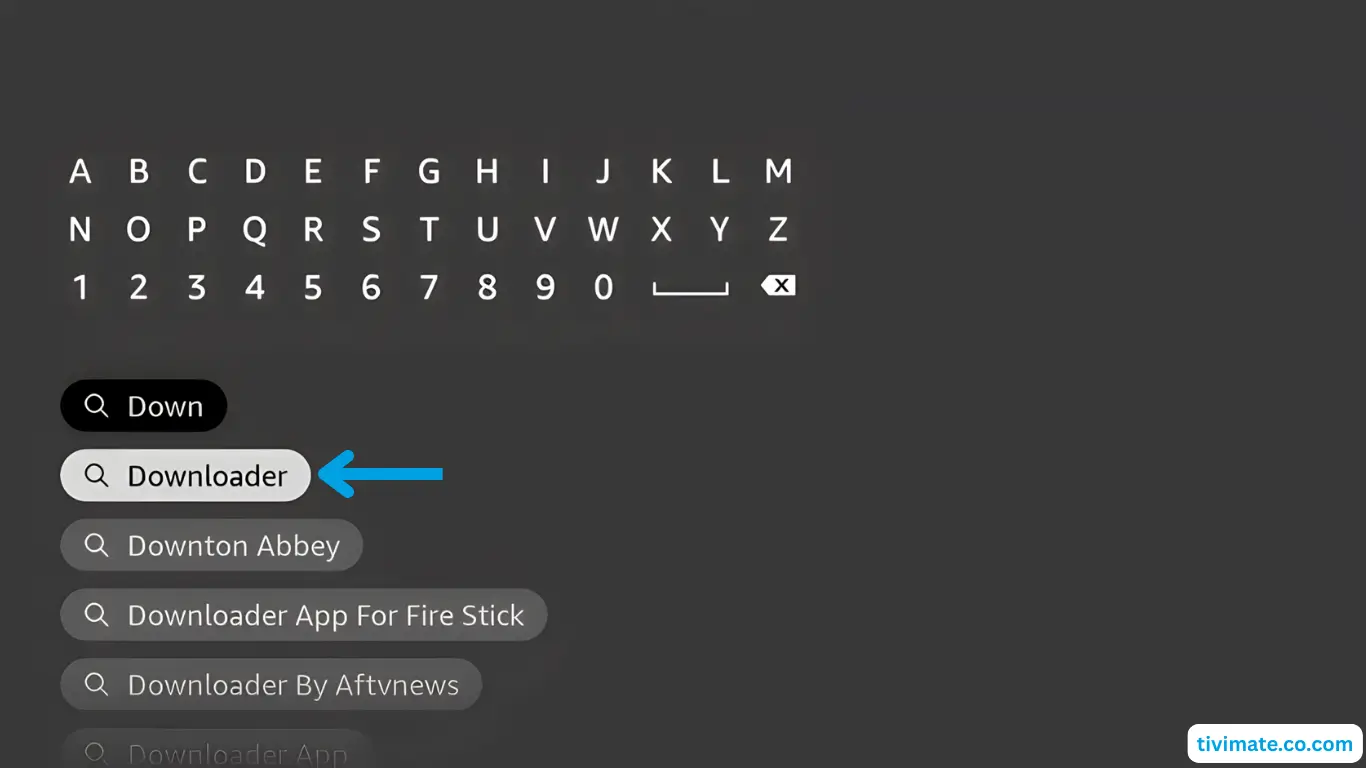
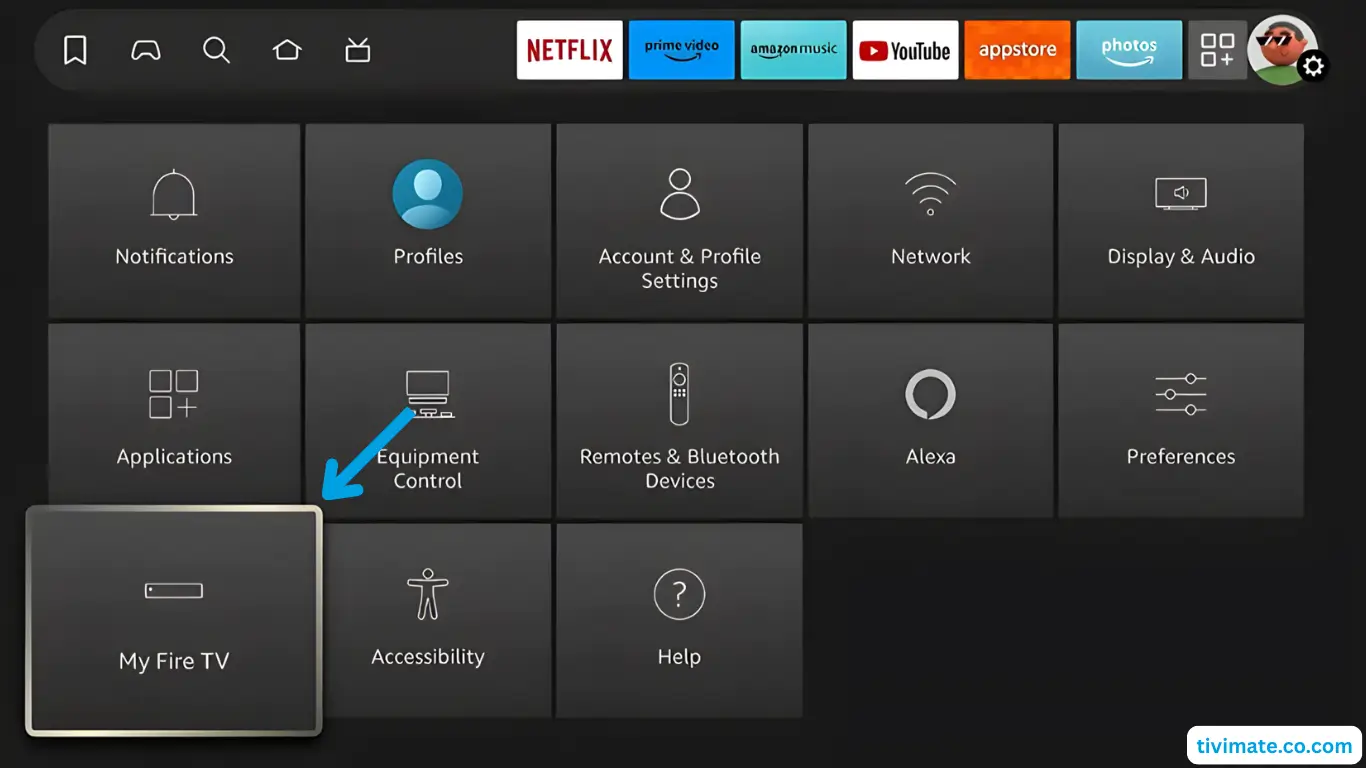
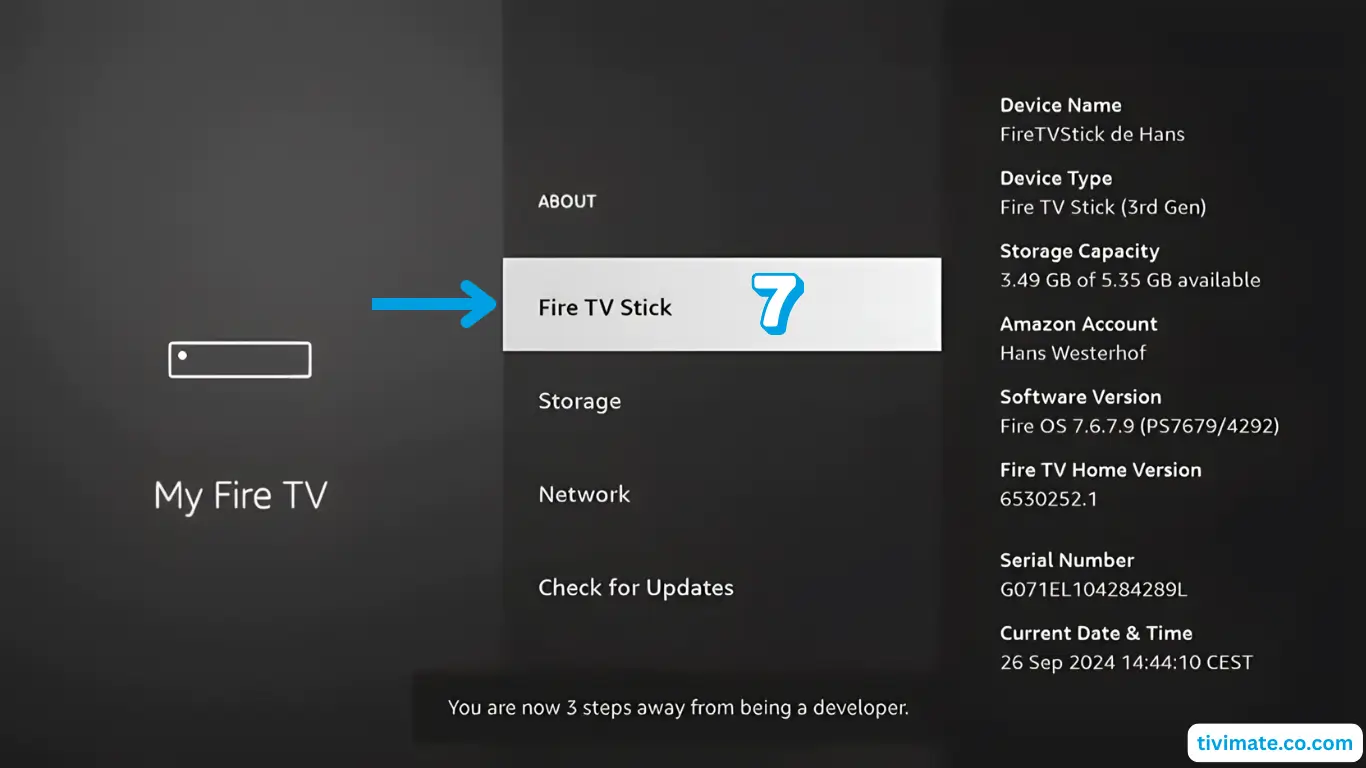
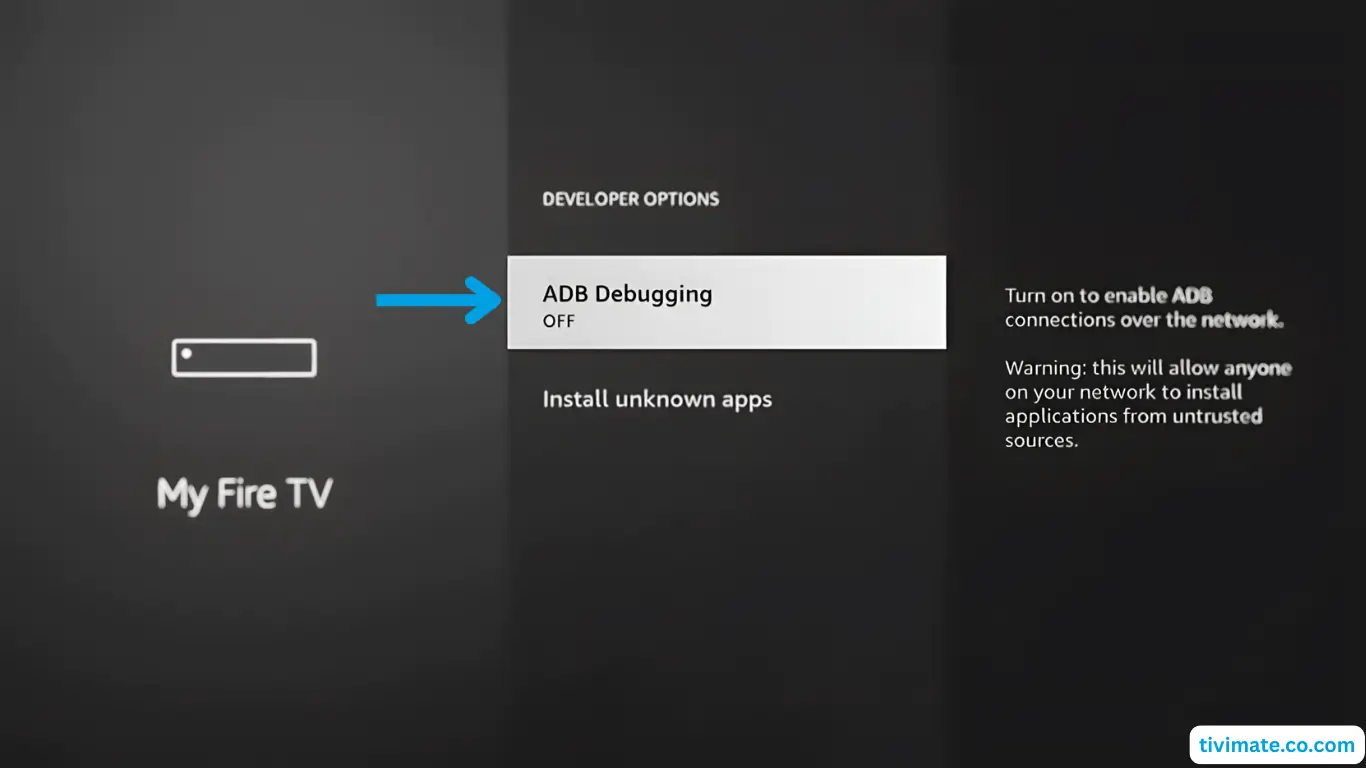
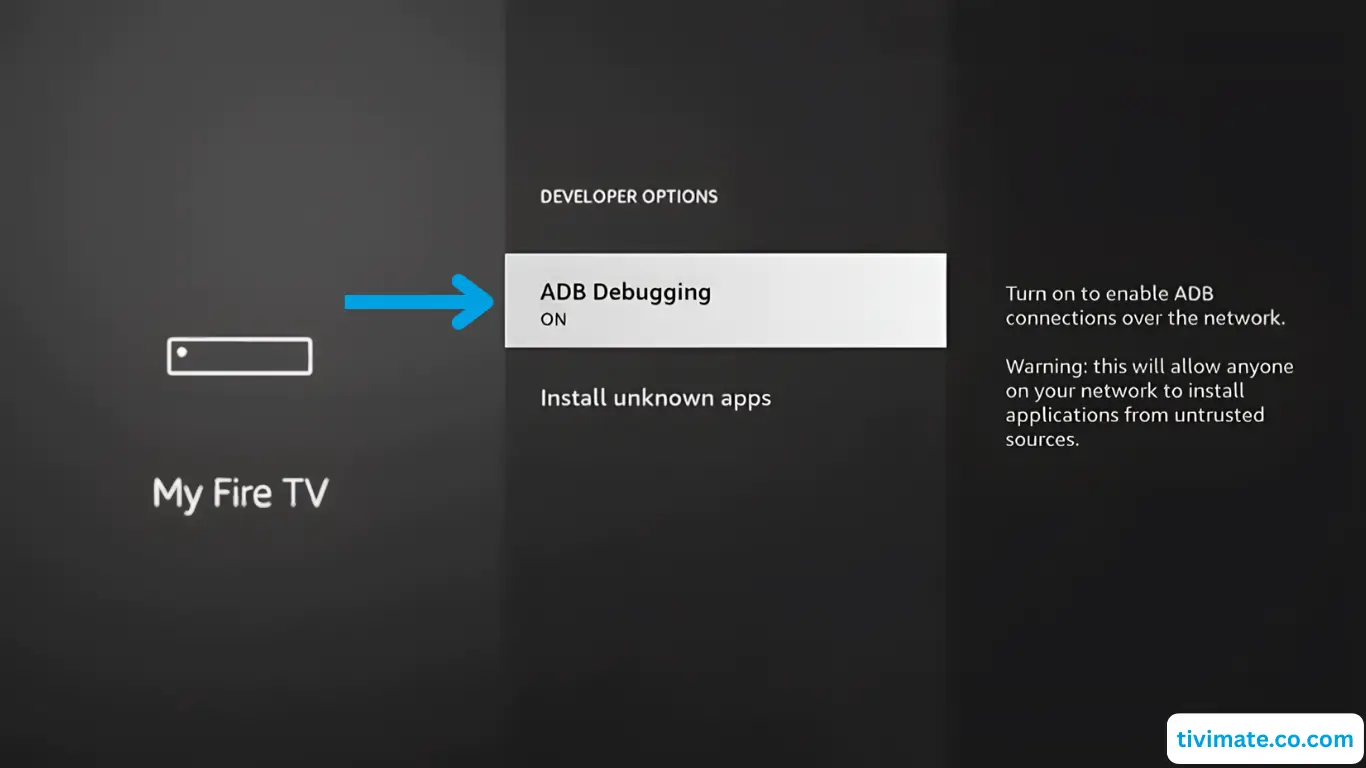
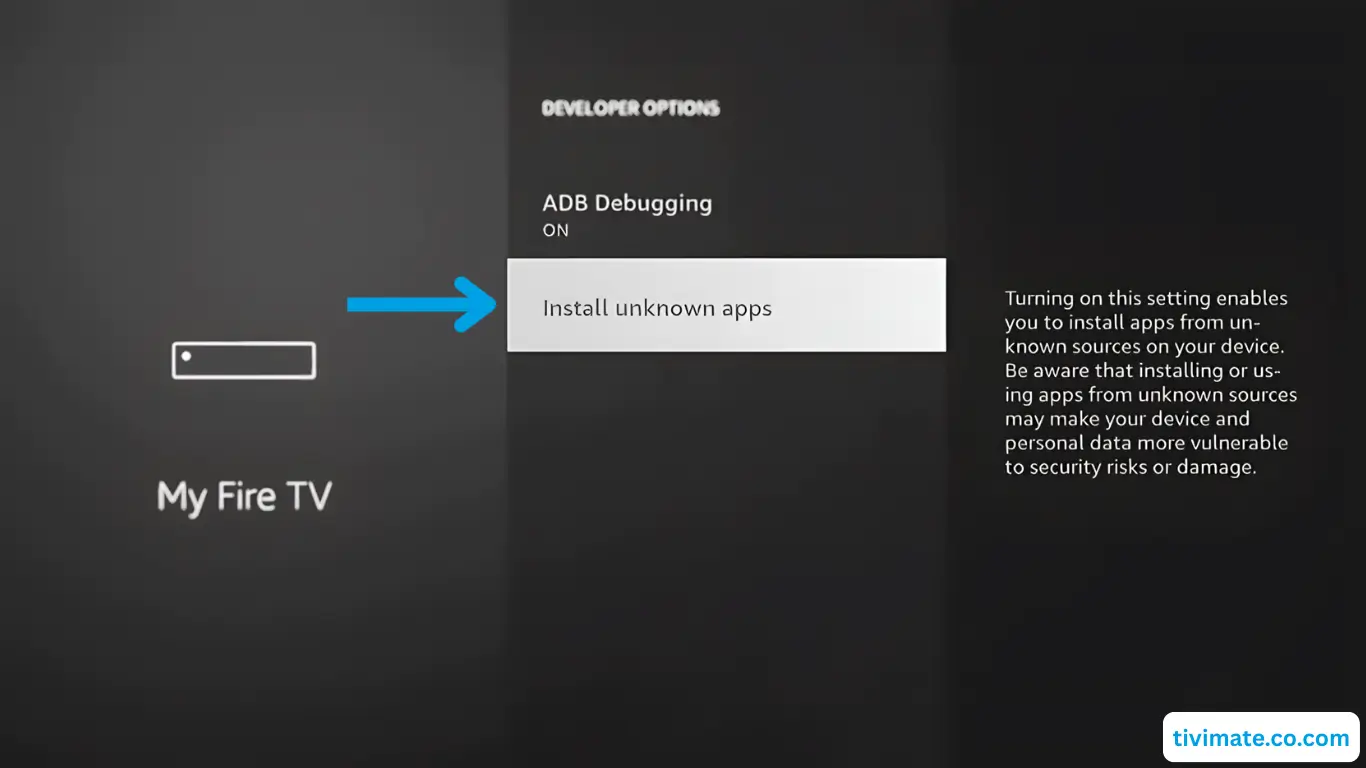
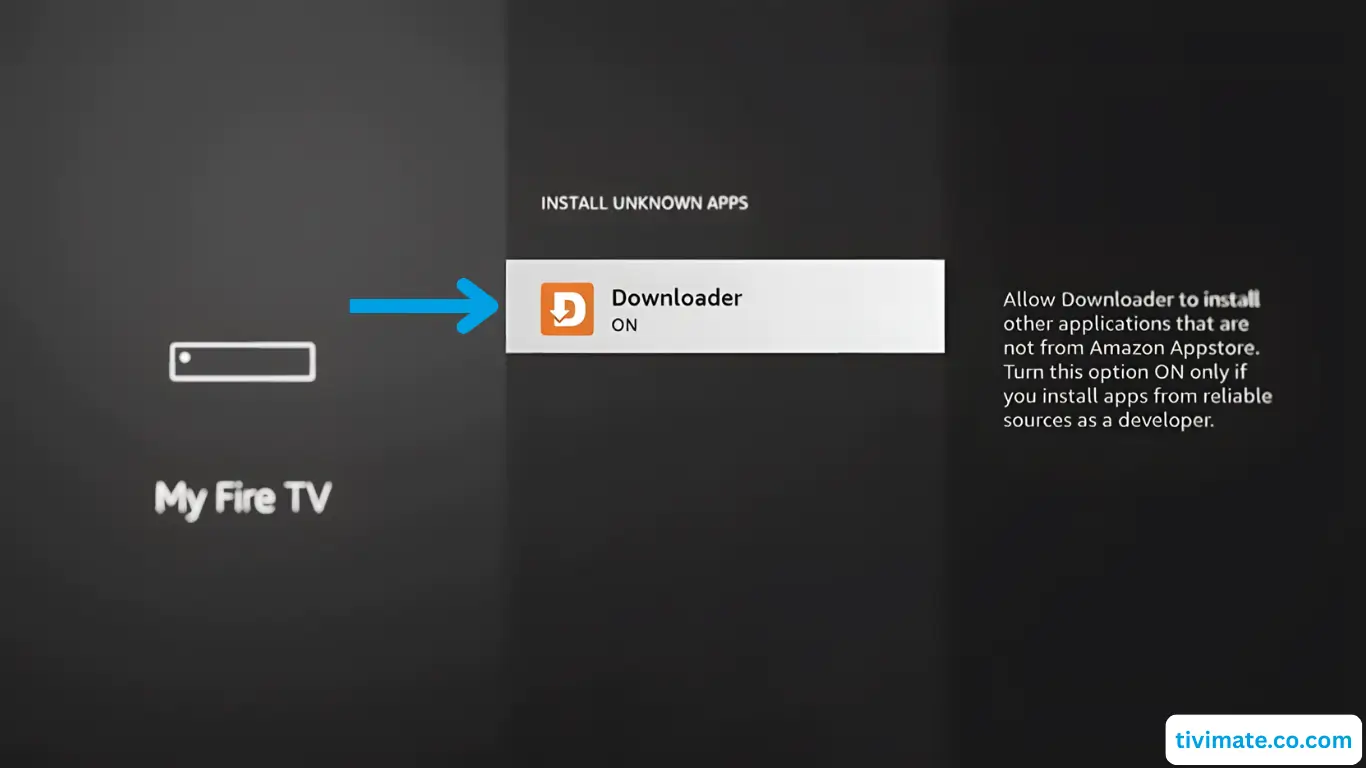
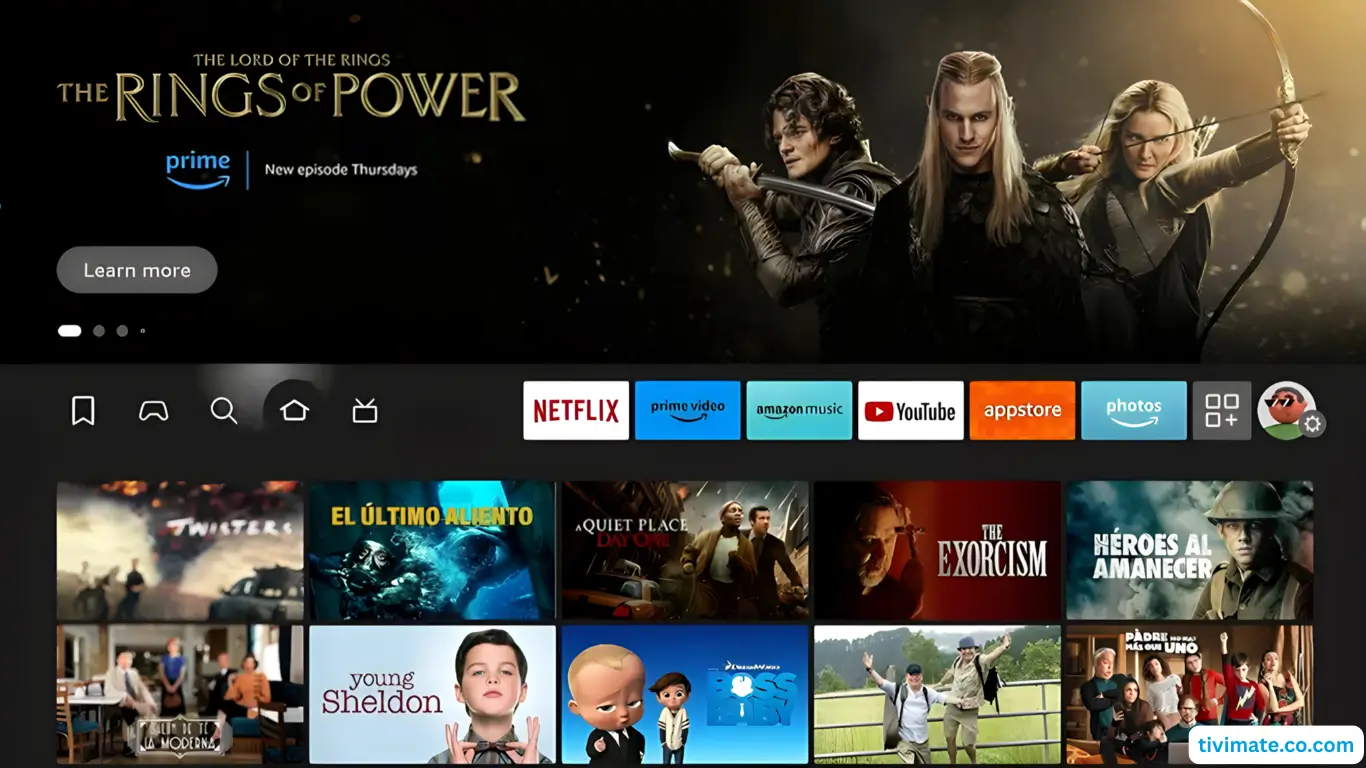
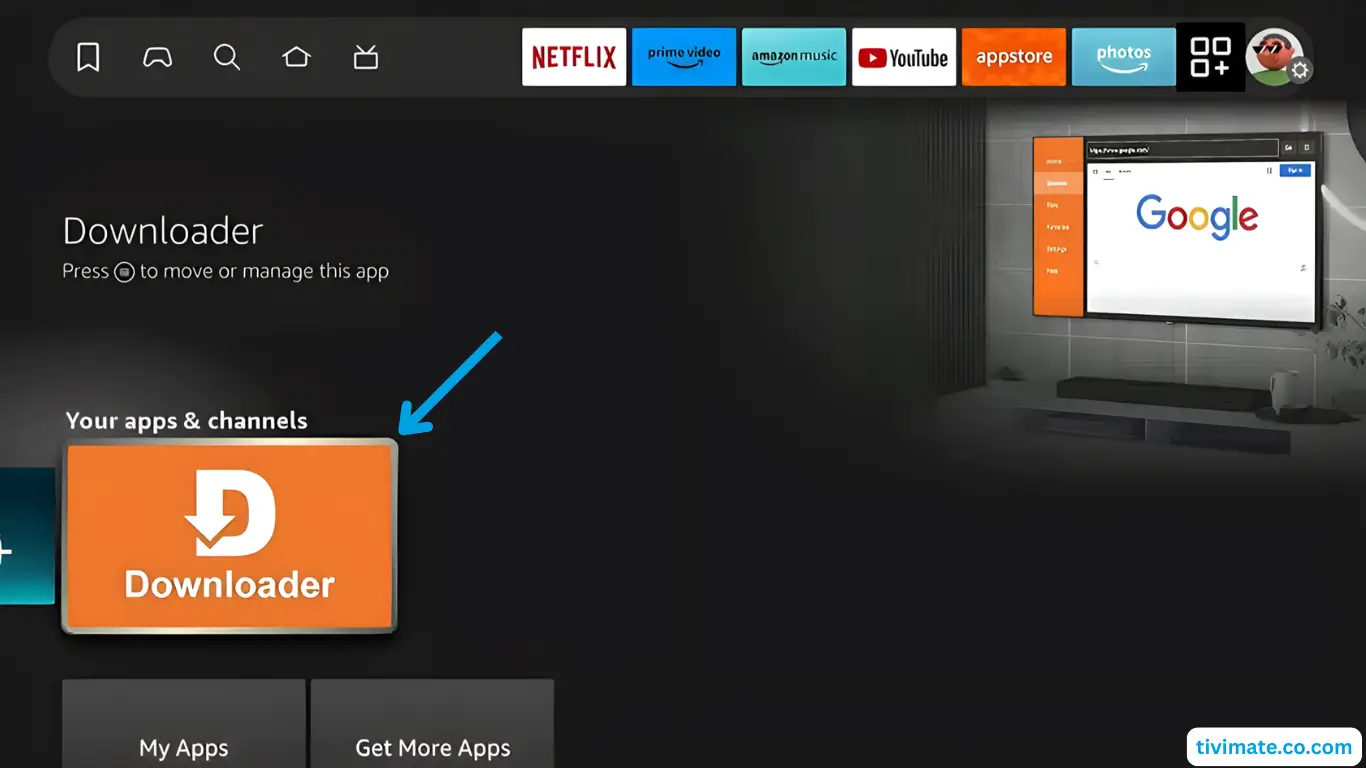
Guide d'installation Fire TV Stick
🔥 Vous préférez Hot Player sur votre Fire TV Stick ?
Hot Player is also available on Fire TV Stick. Get a 1-year license, enter your device’s MAC address, and we activate it instantly. Install steps, MAC activation & secure checkout are all on our page (no channels included — you use your own subscription).
Get Hot Player · 1-Year License →Choose Your Learning Style
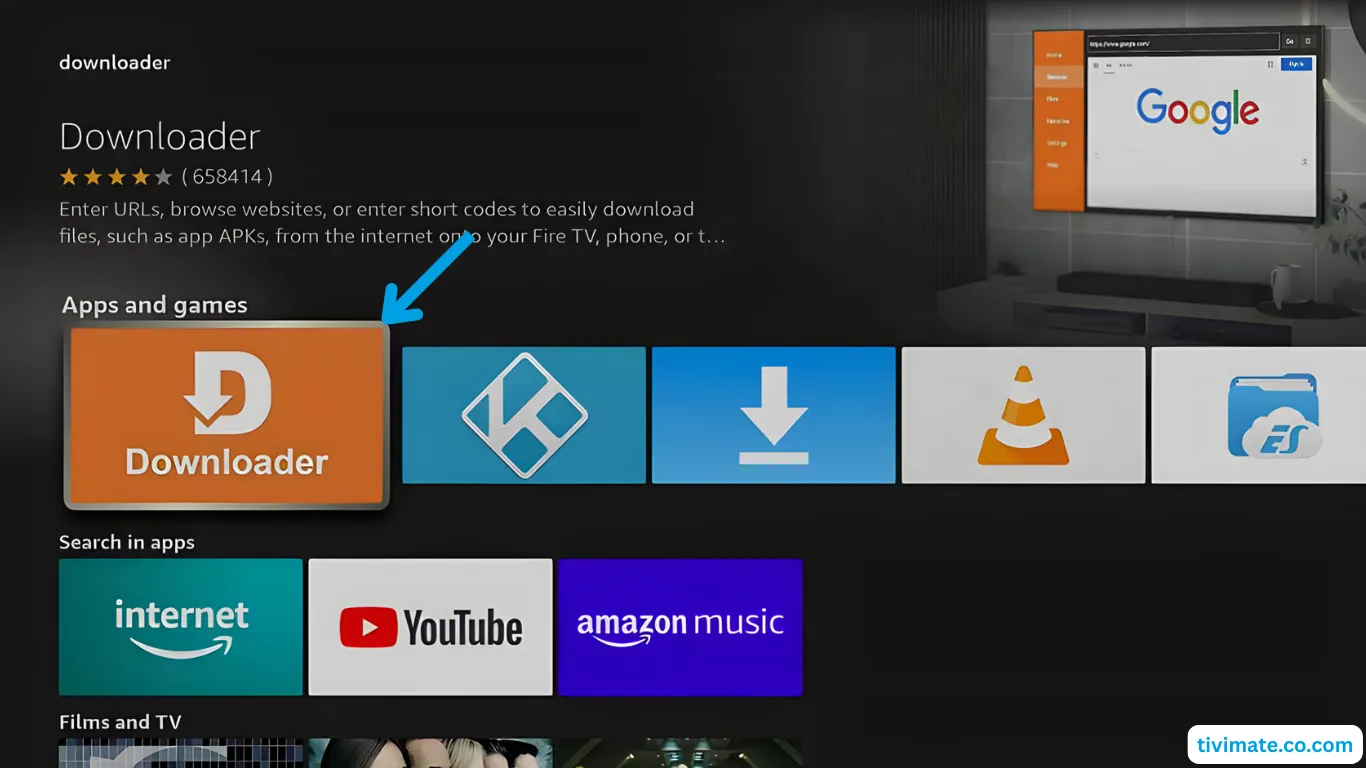
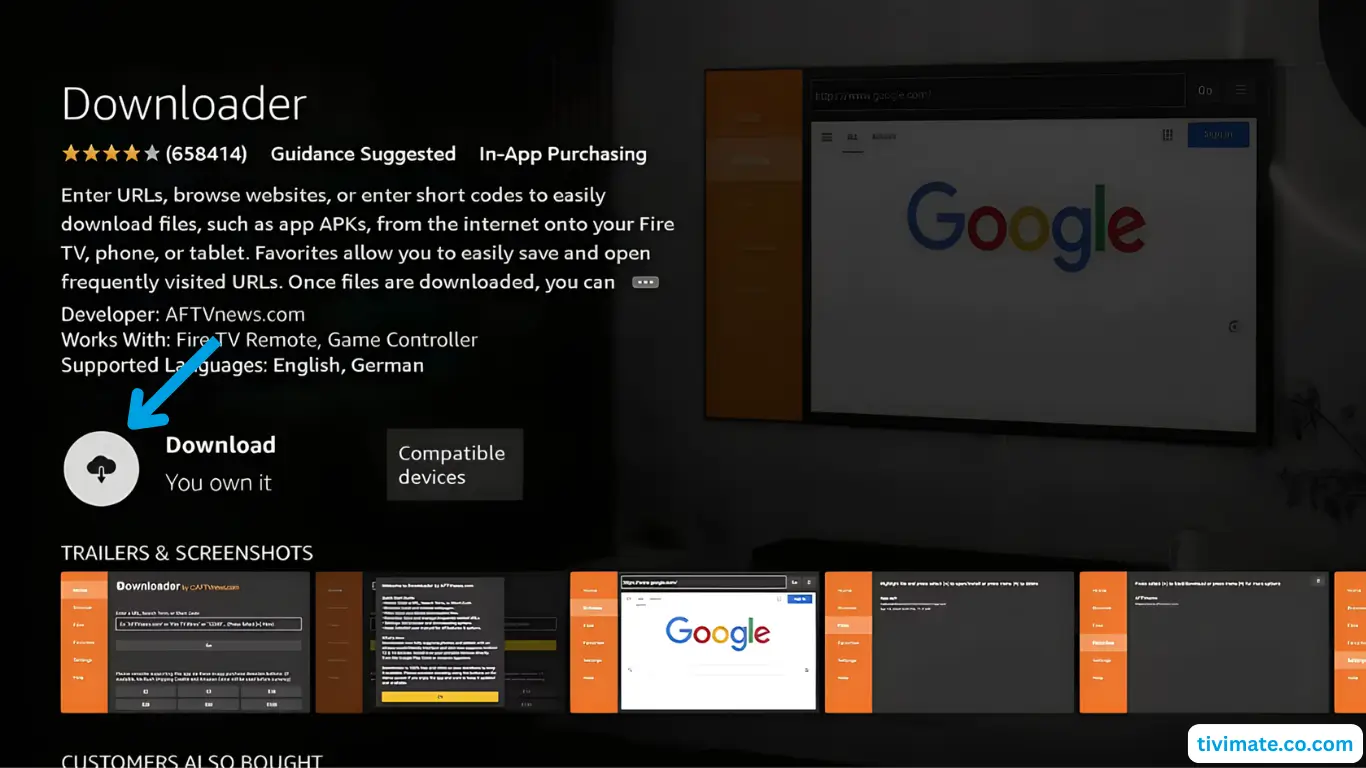
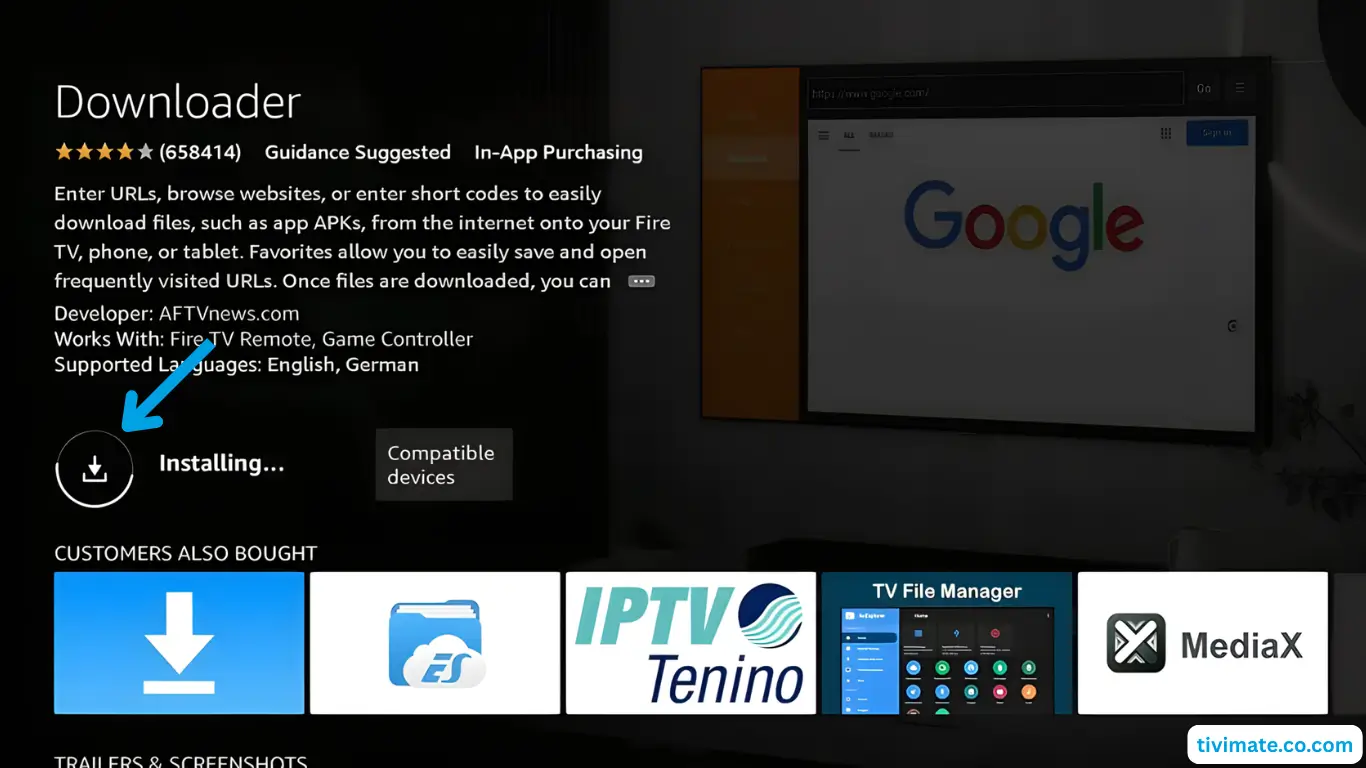
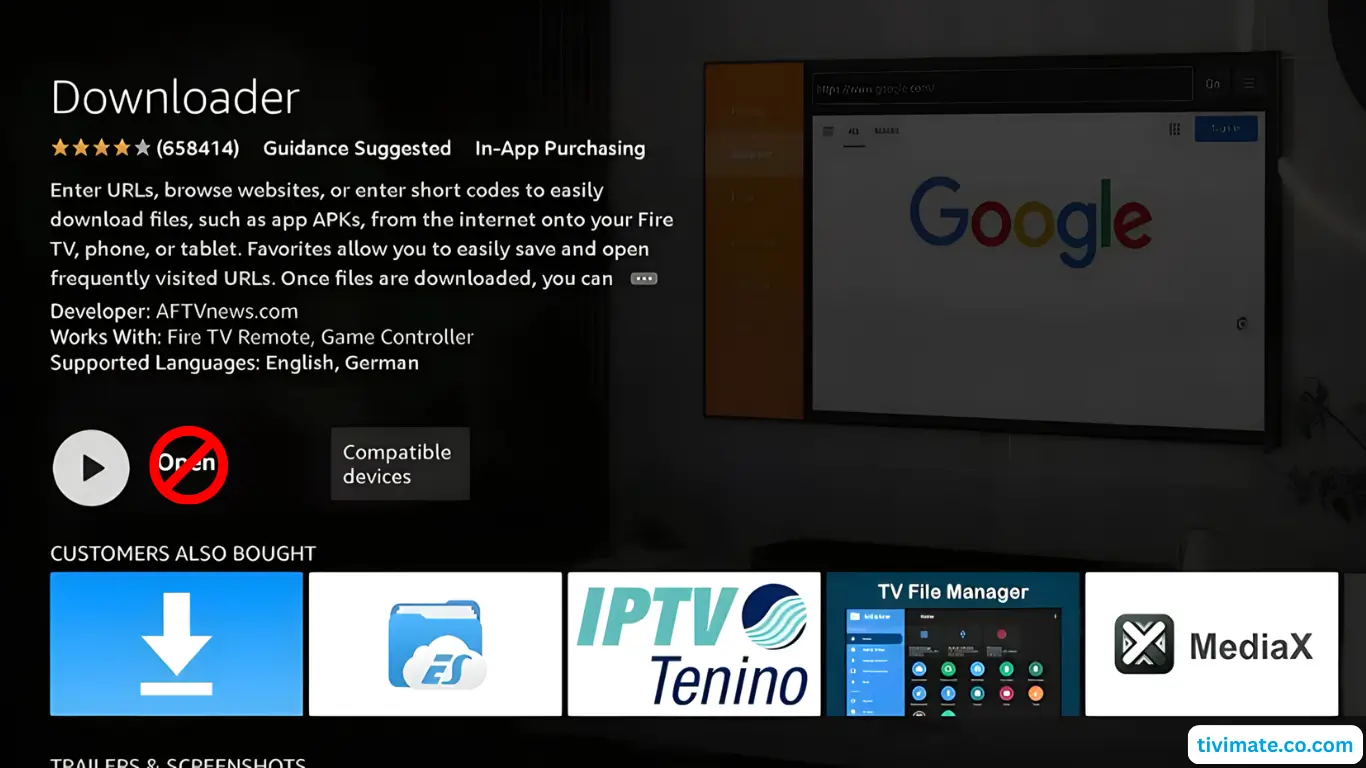
Guide d'installation Android TV et boîtiers
🔥 Vous préférez Hot Player sur votre Android TV ?
Hot Player is also available on Android TV. Get a 1-year license, enter your device’s MAC address, and we activate it instantly. Install steps, MAC activation & secure checkout are all on our page (no channels included — you use your own subscription).
Get Hot Player · 1-Year License →Méthode 1 : Utilisation de l'application Downloader
-
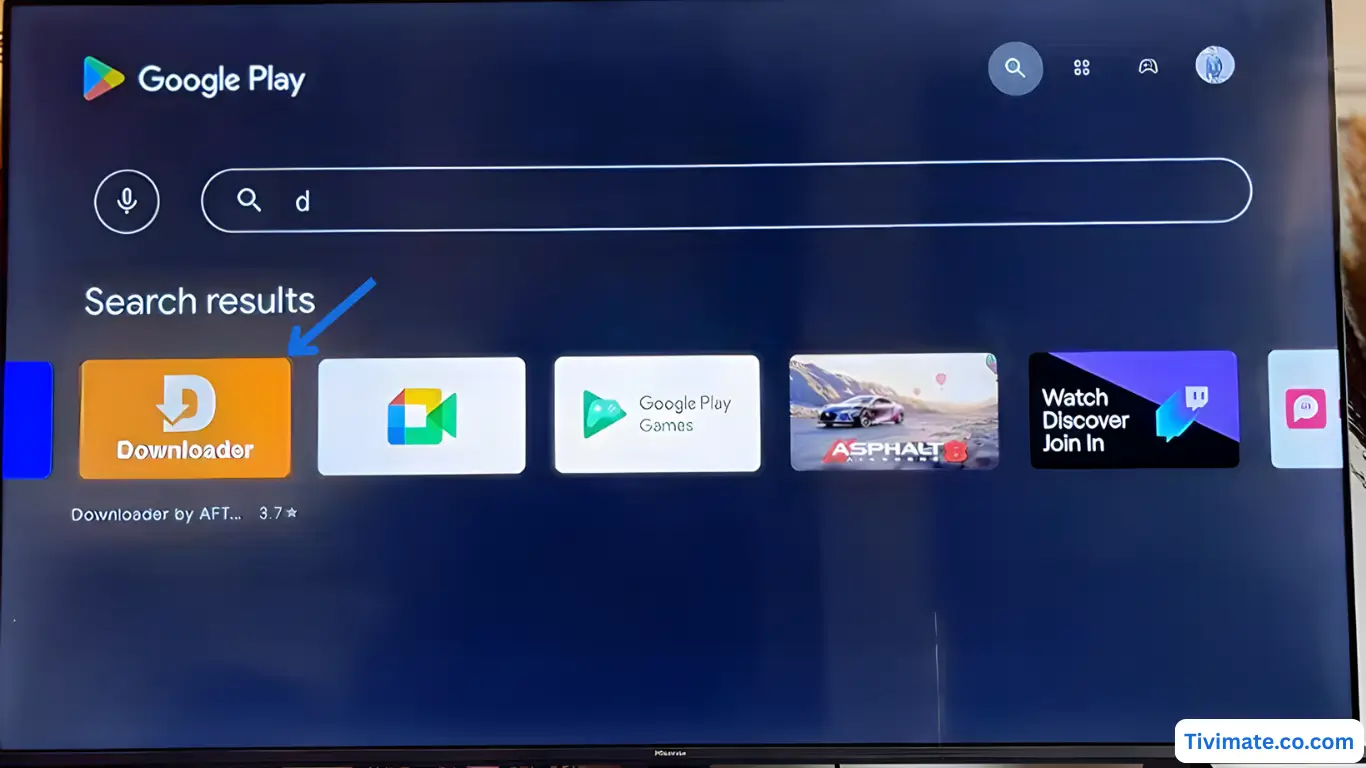
Search for Downloader in the Play Store and tap Install
-
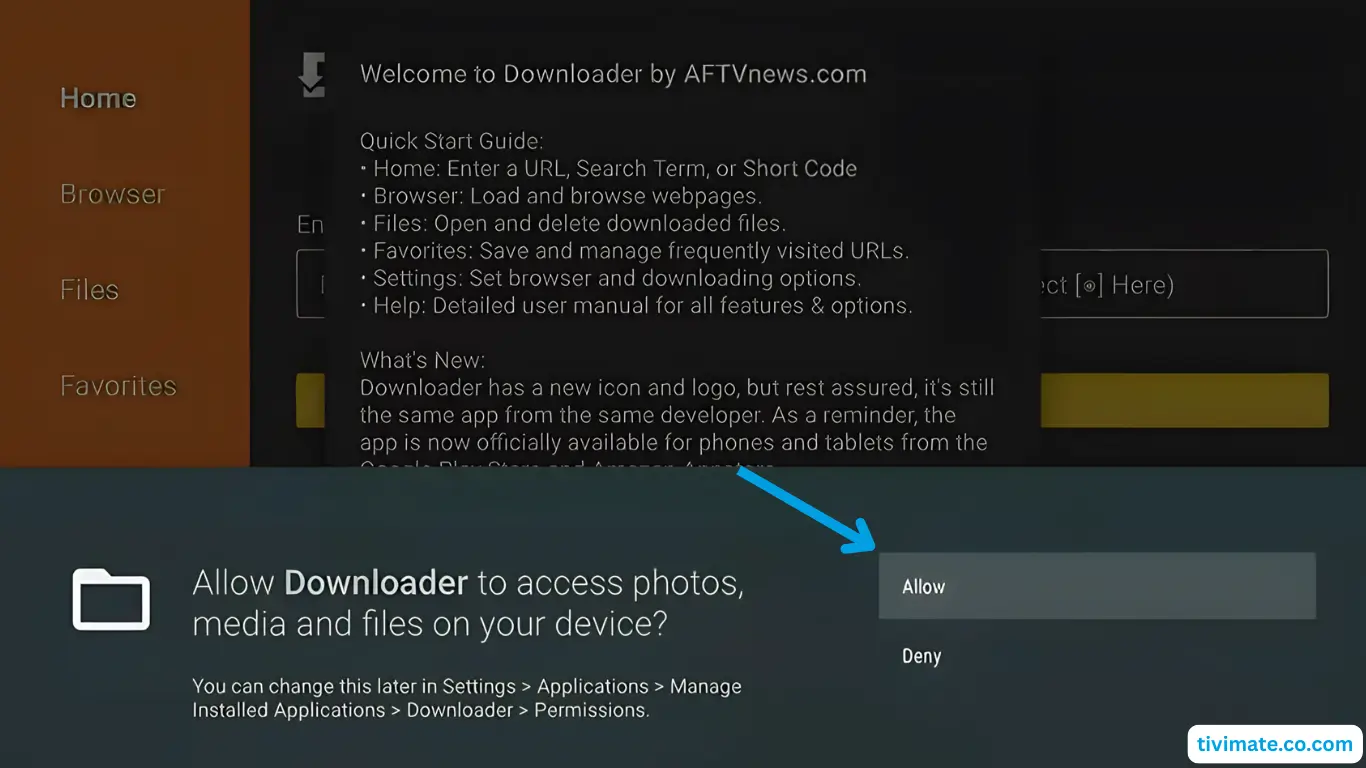
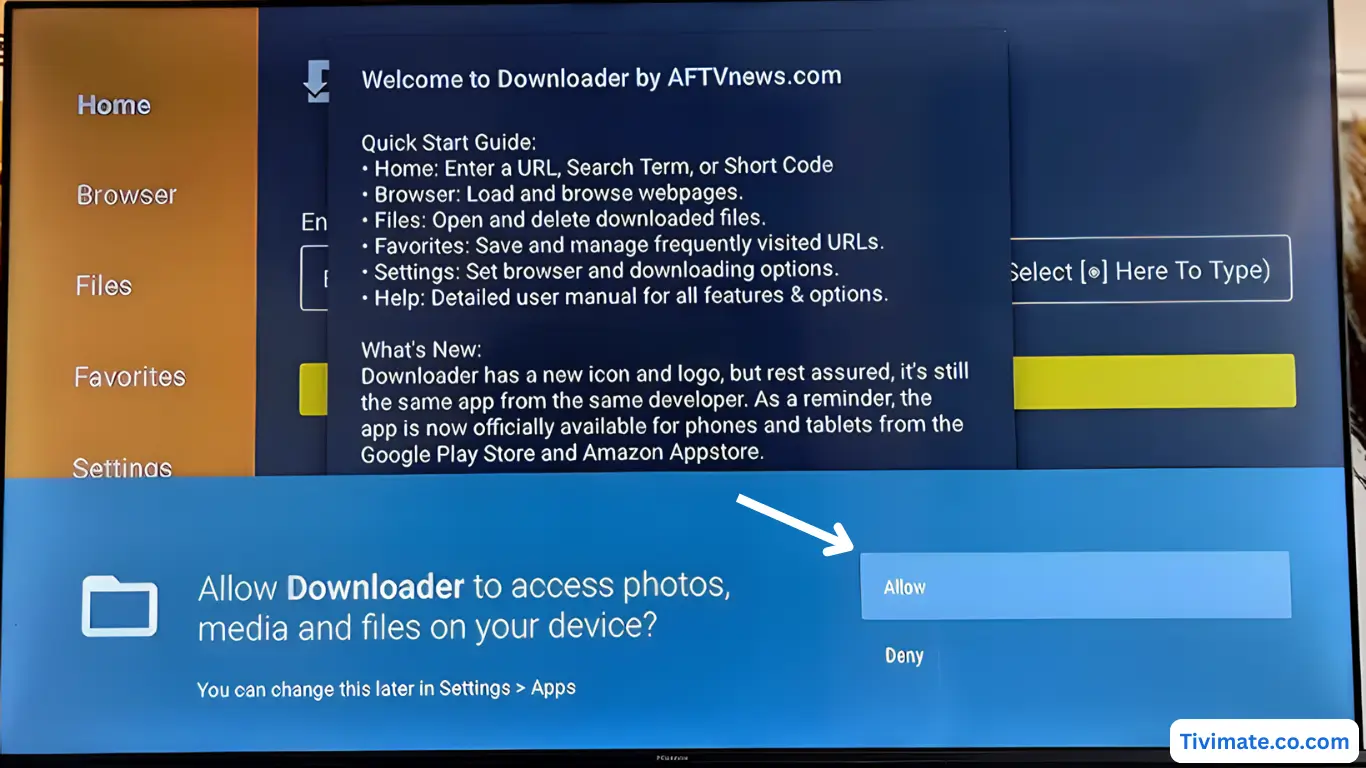
Press Allow when prompted
-
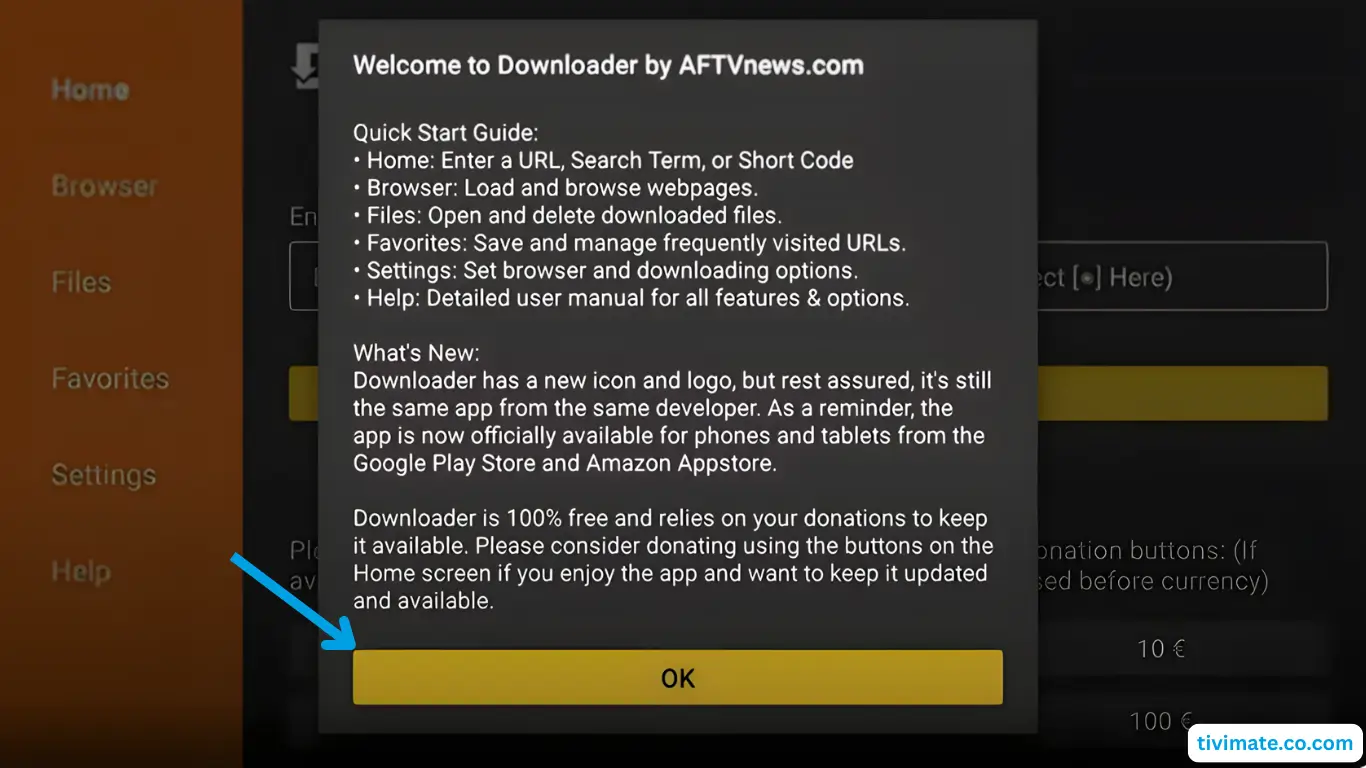
Click OK to confirm and proceed
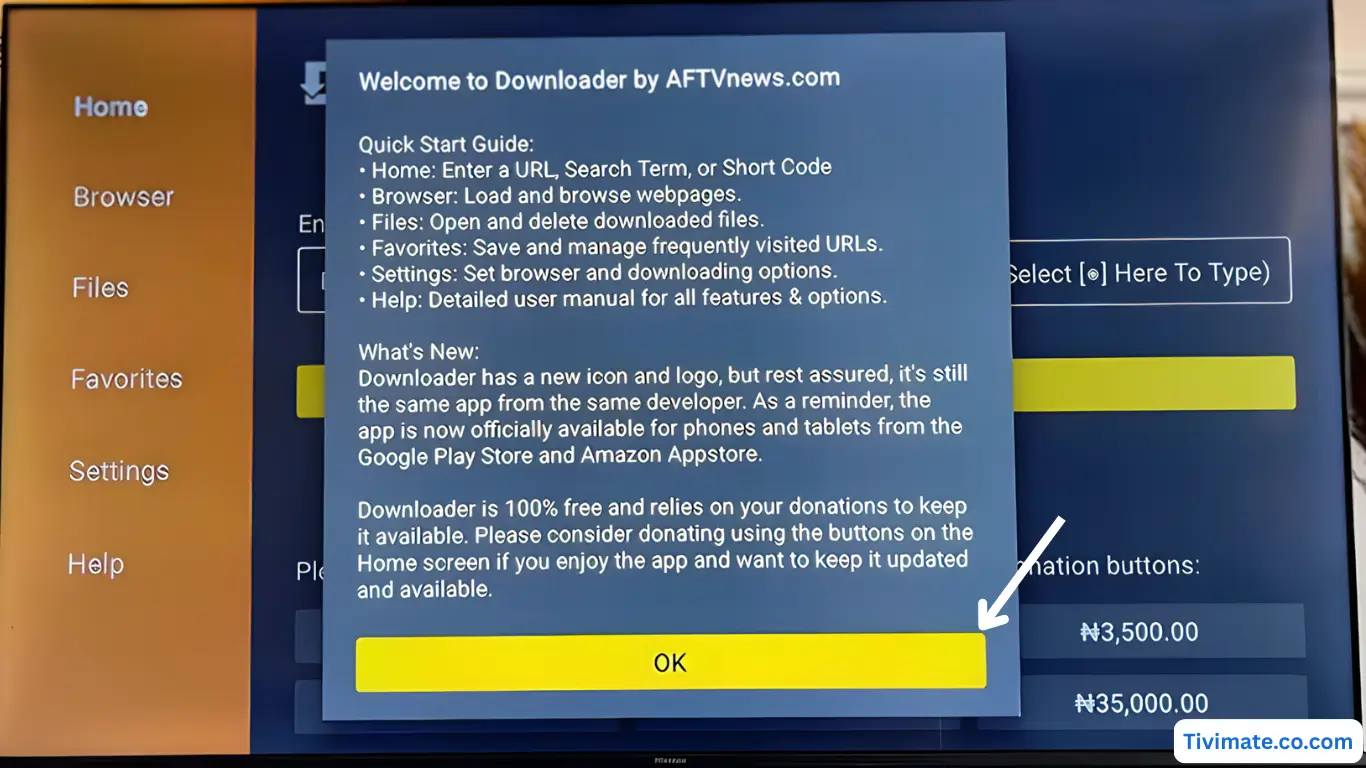
-
Downloader is ready — now install V12Mate
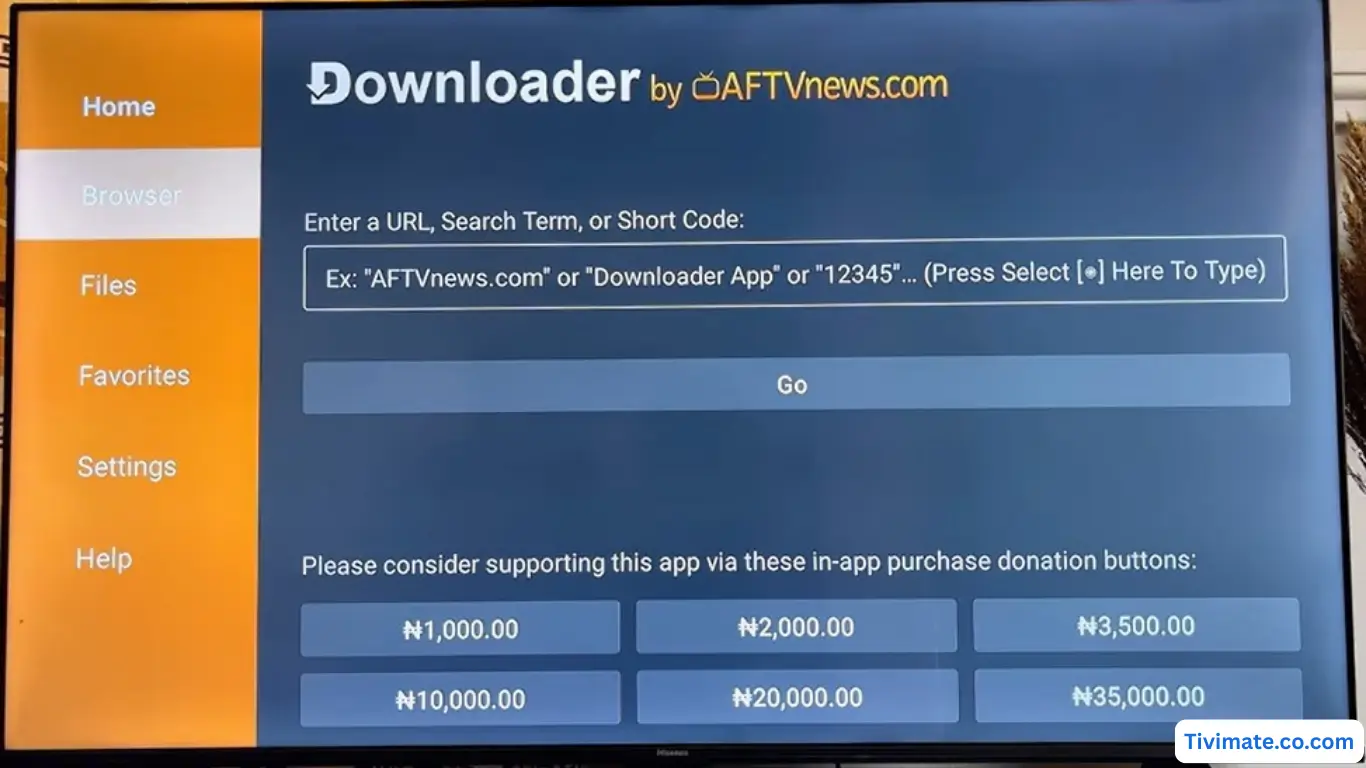
-
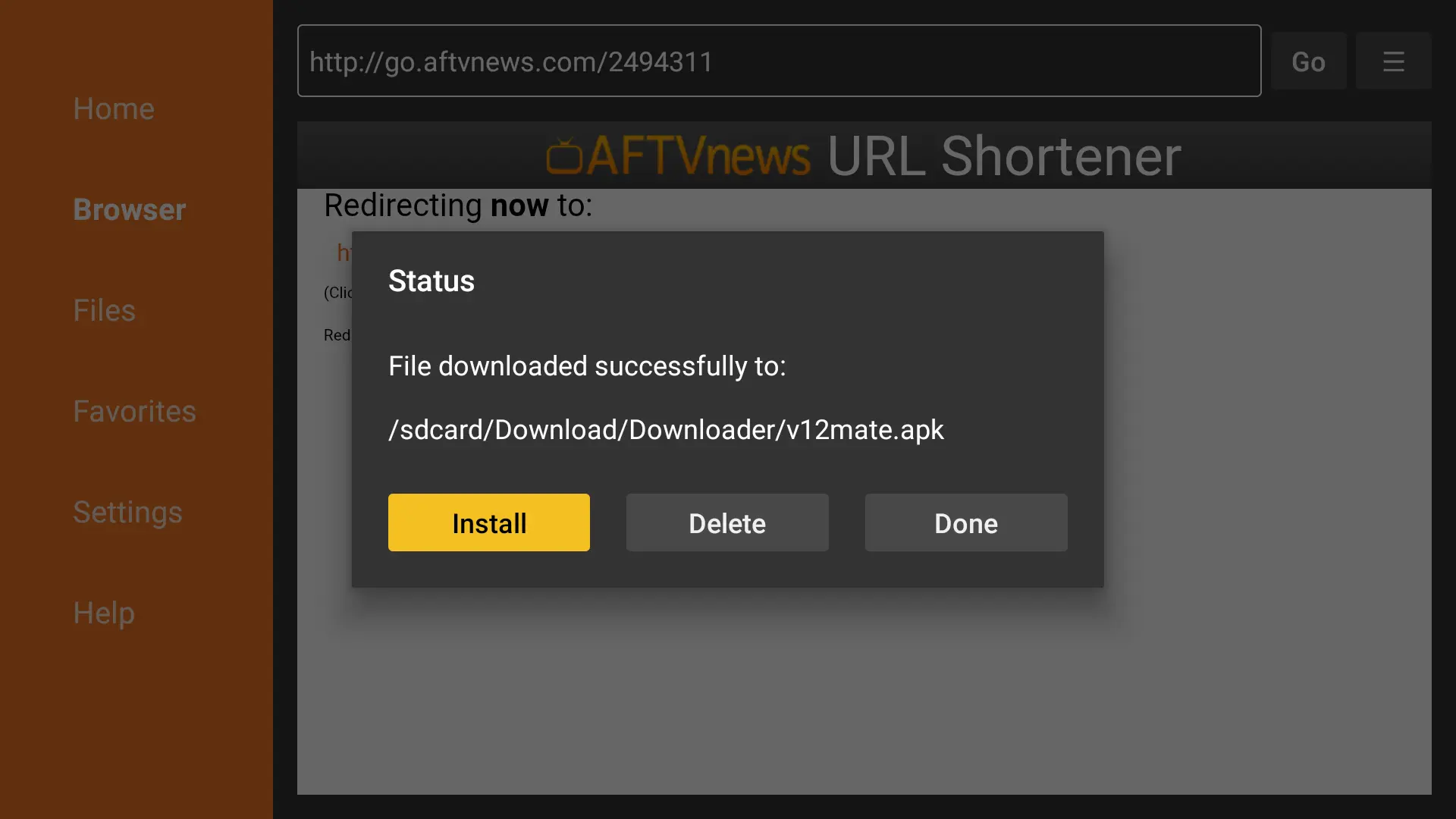
Enter the Downloader code for V12Mate: 2494311 → press GO
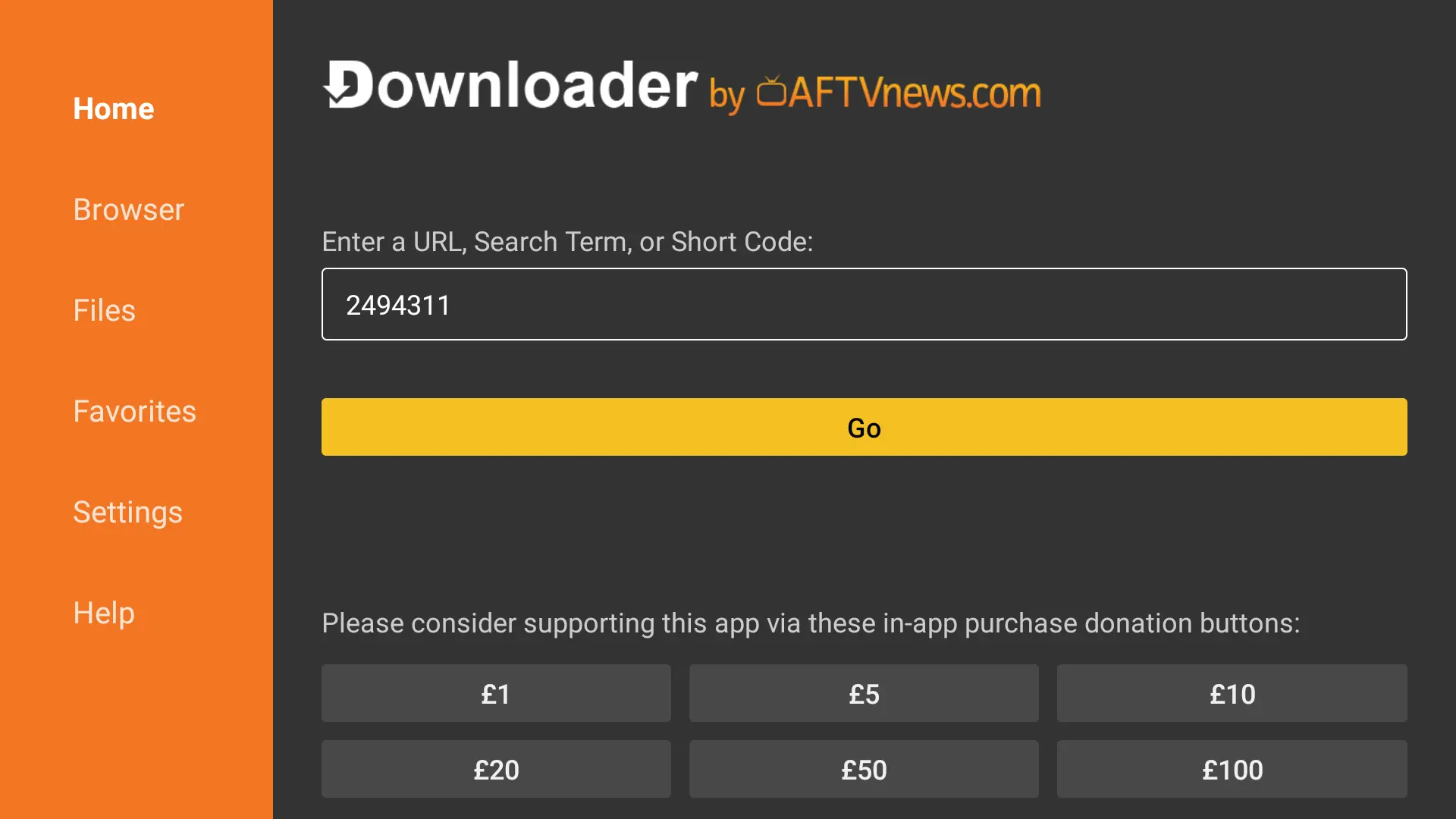
-
Accept Privacy Policy → Install → confirm Install again if asked
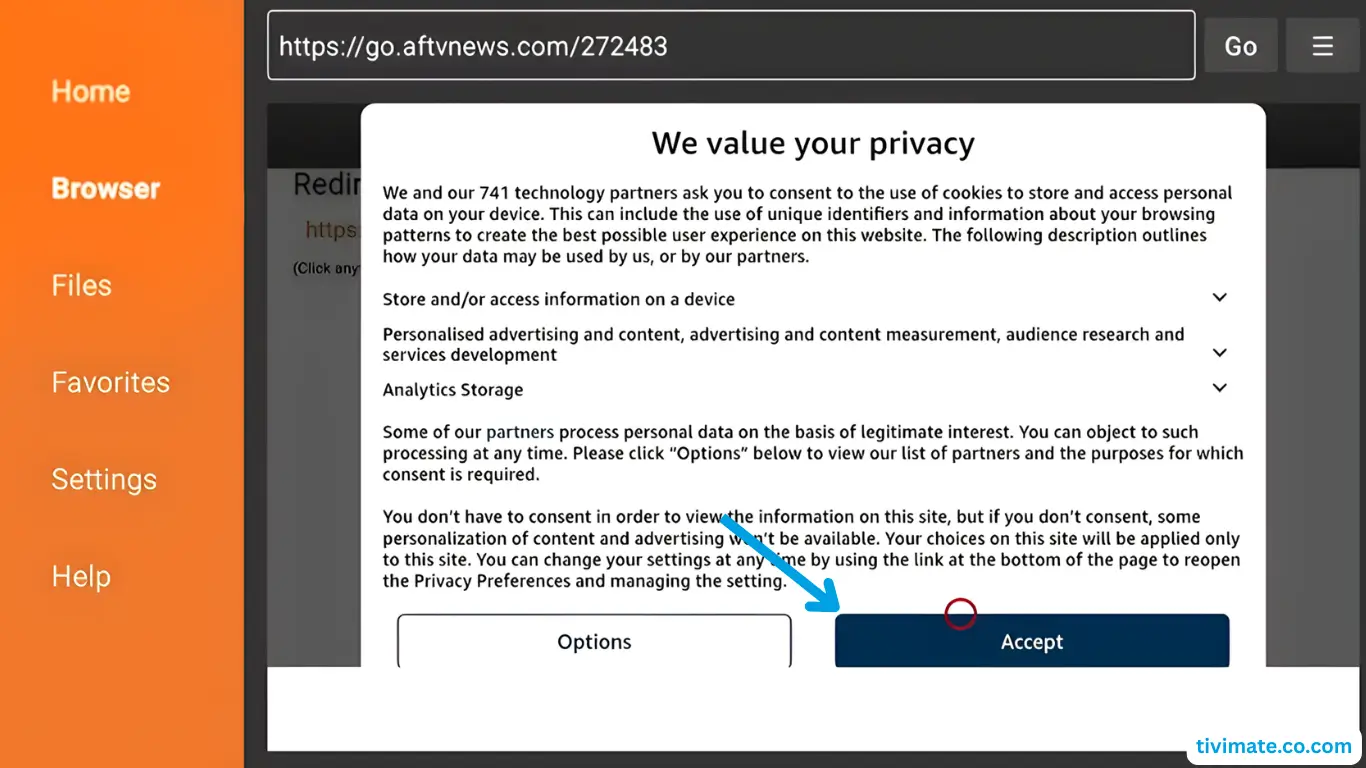
-
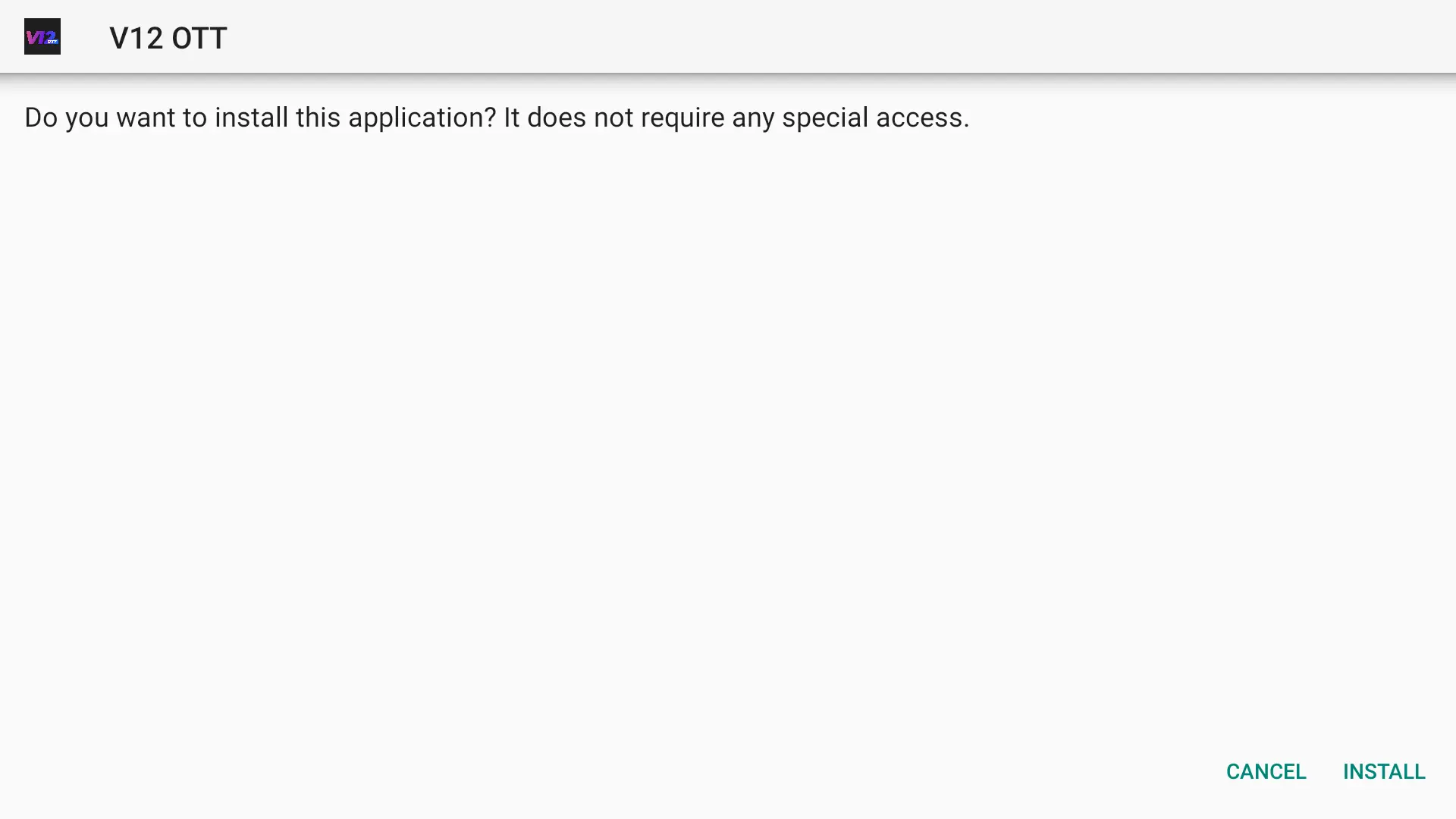
Press Install → wait until installed
-
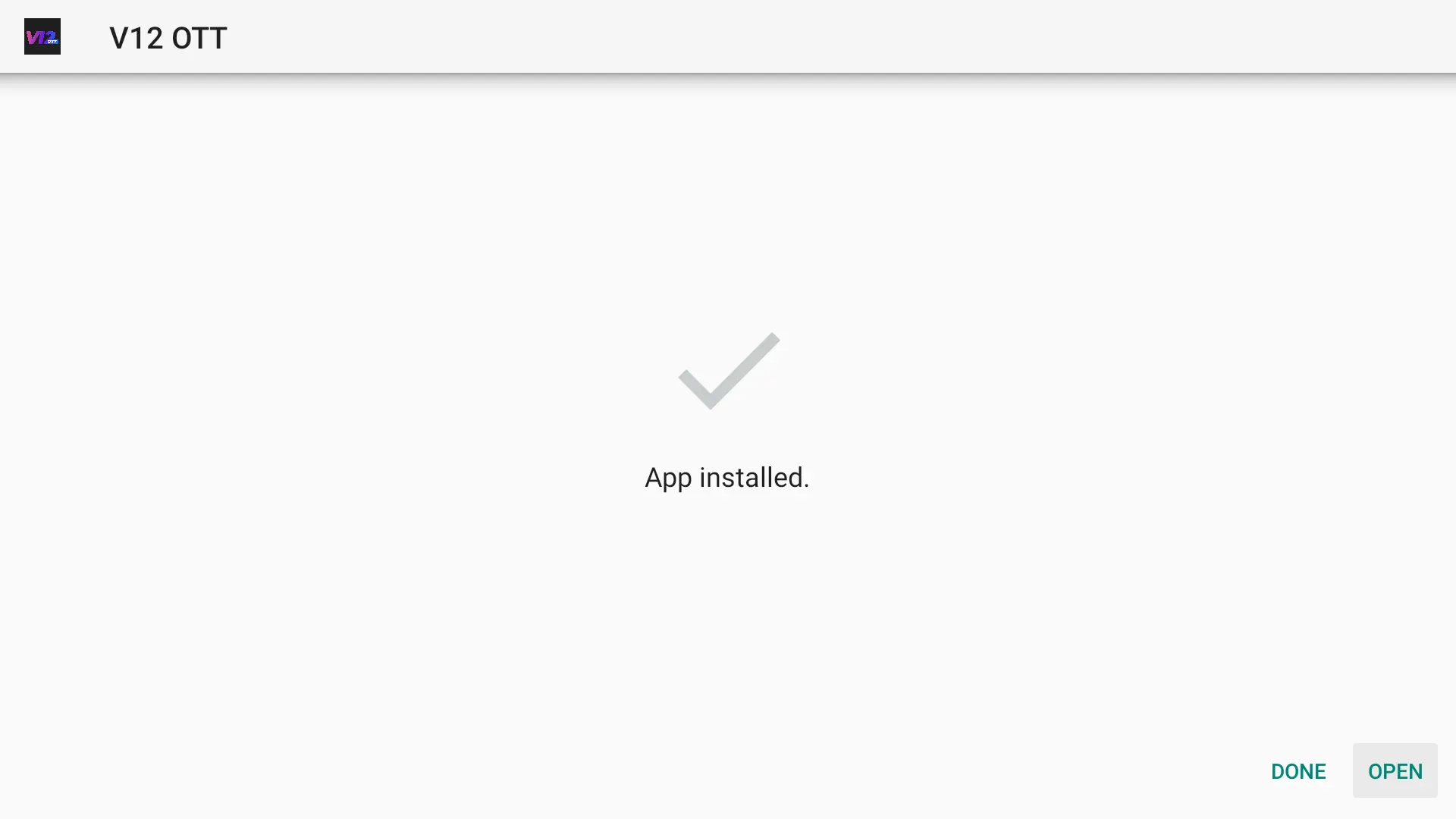
When complete, press OPENVery Important: If you already have Tivimate installed, please uninstall it first — otherwise V12mate will not install
-
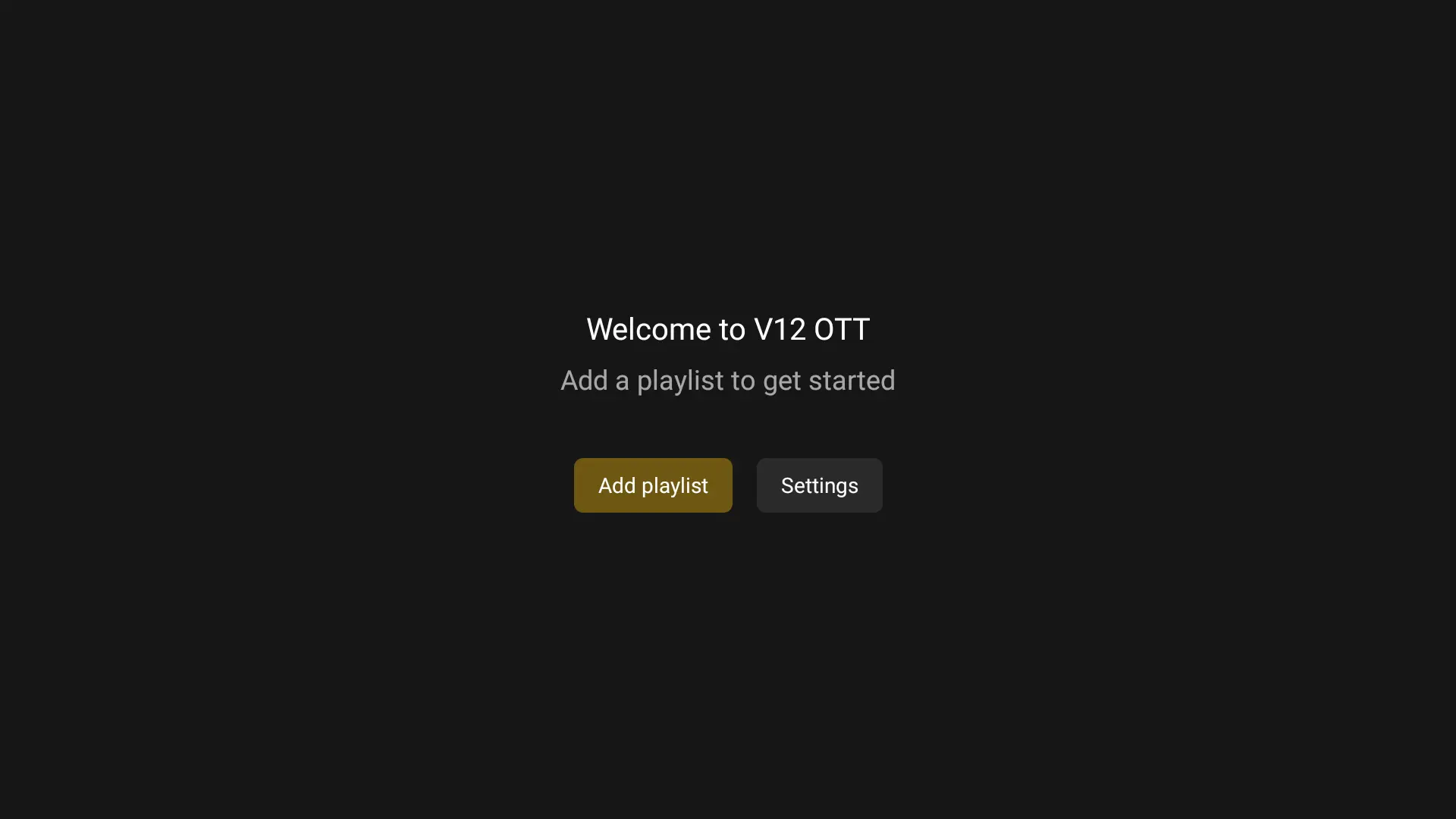
Press Add playlist
-
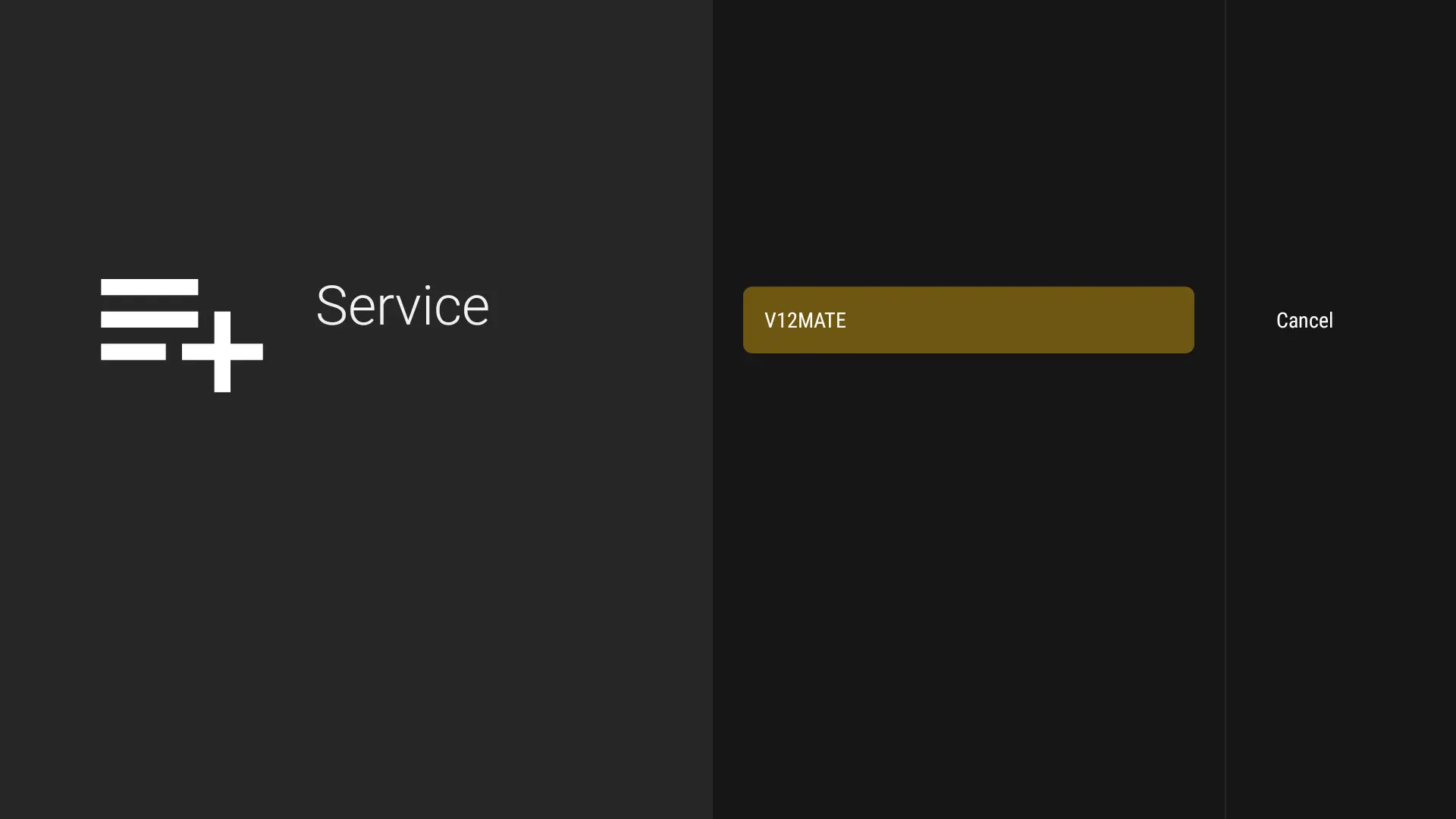
Press V12MATEIf you only see “Cancel”, click this link to fix it 👉 CLIQUEZ ICI
-
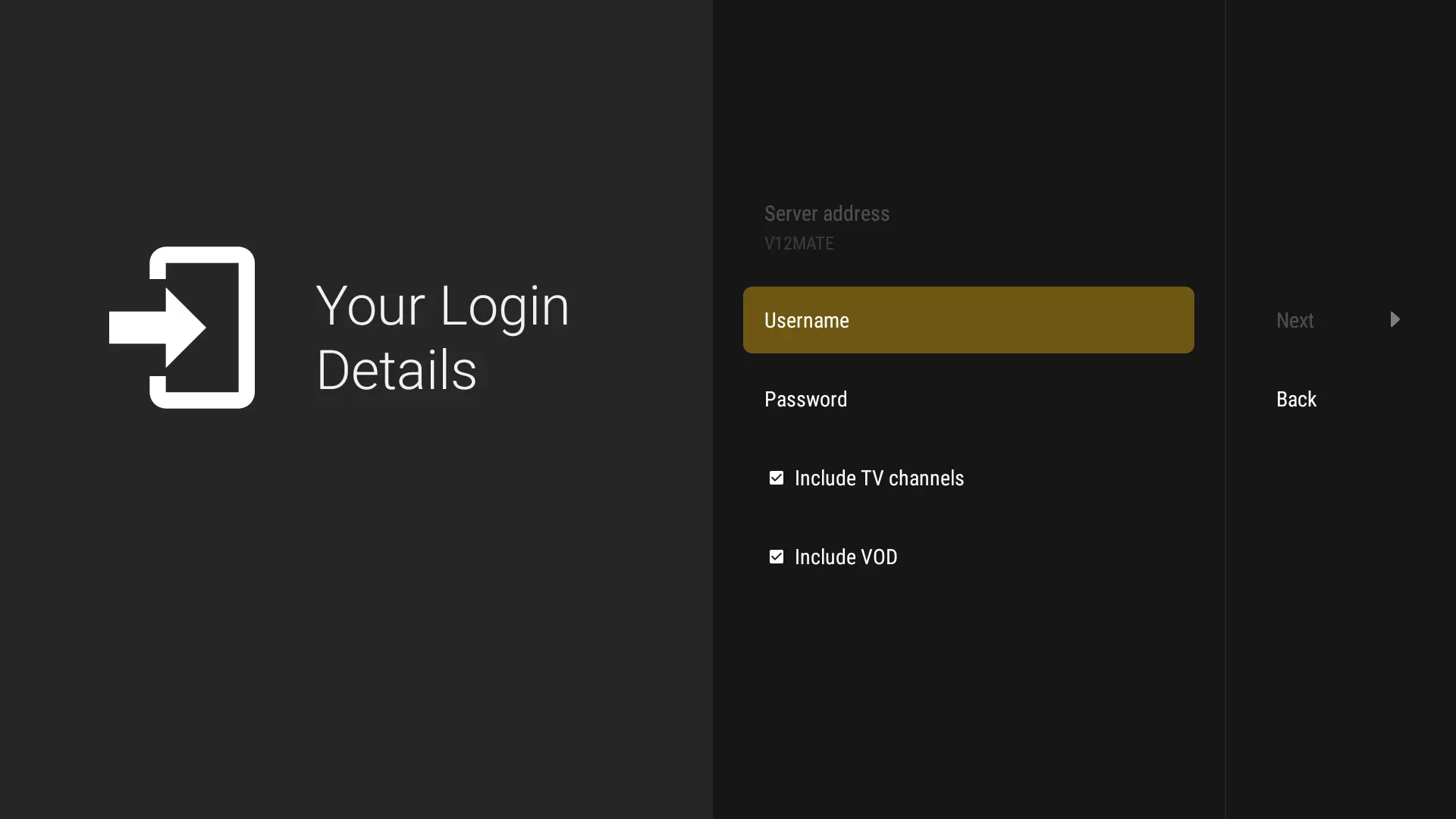
Enter your Credentials - (No server URL is needed since it’s our player.)
-
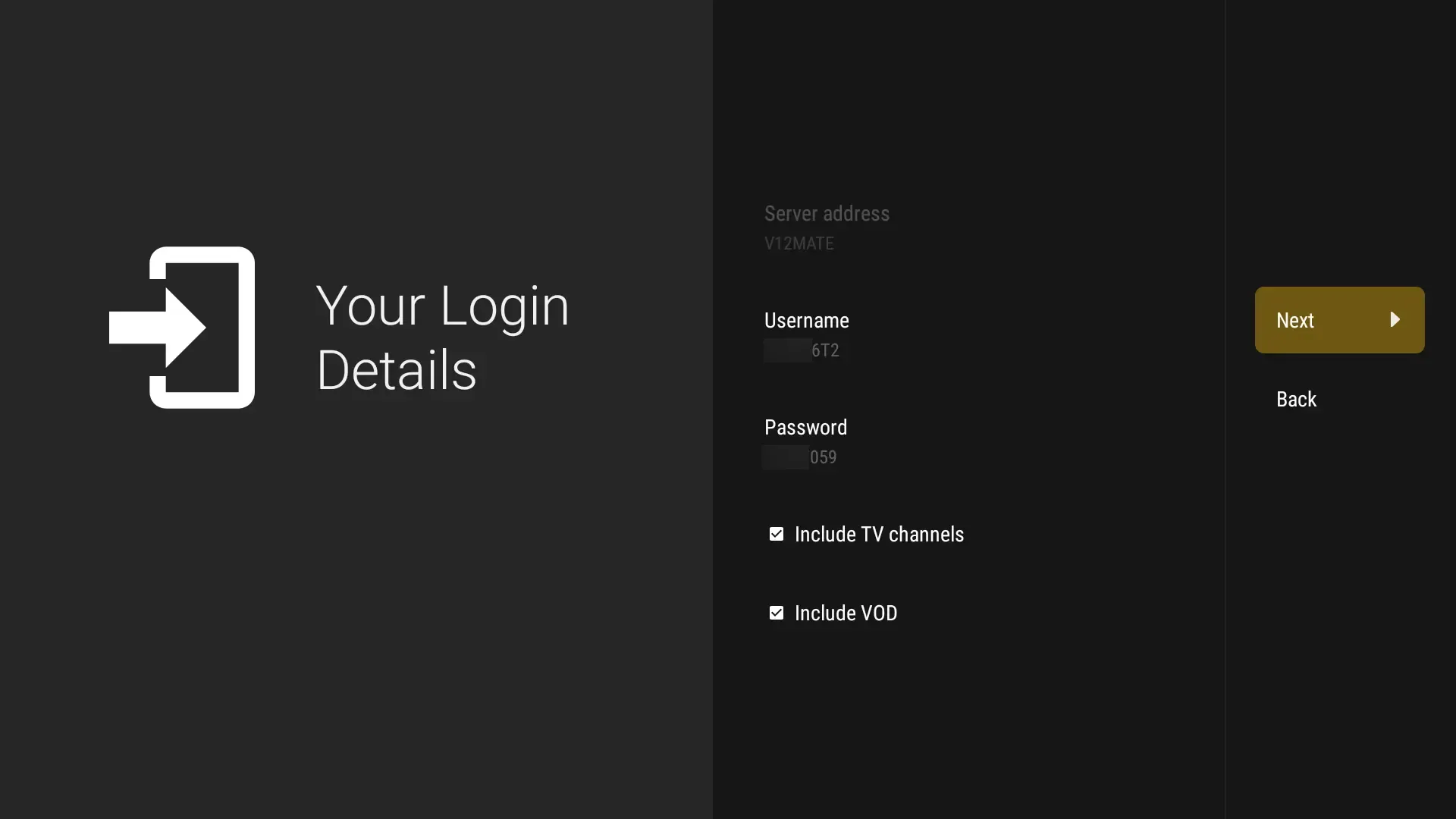
Press Next, Make sure to keep VOD and TV channels selected
-
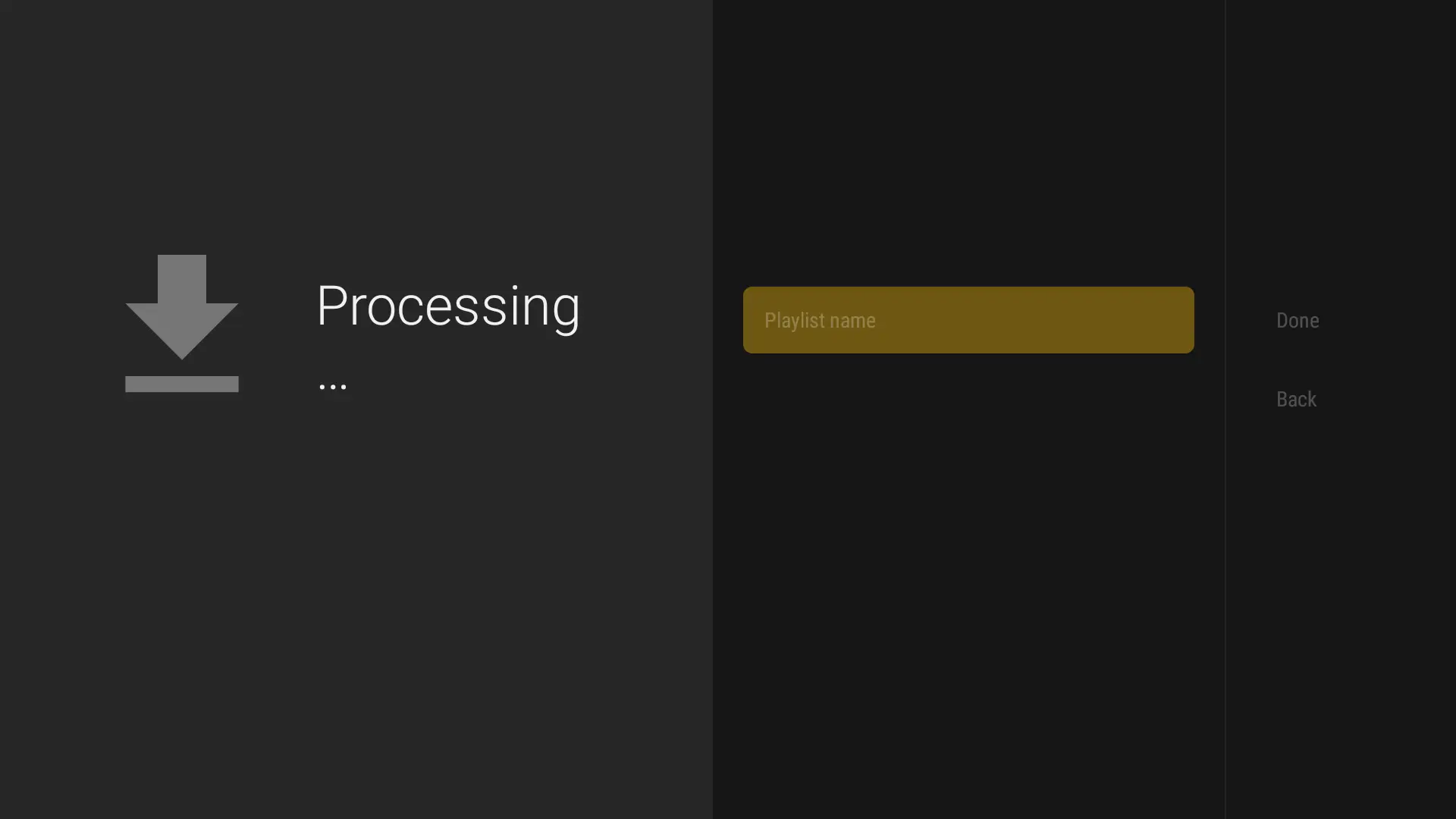
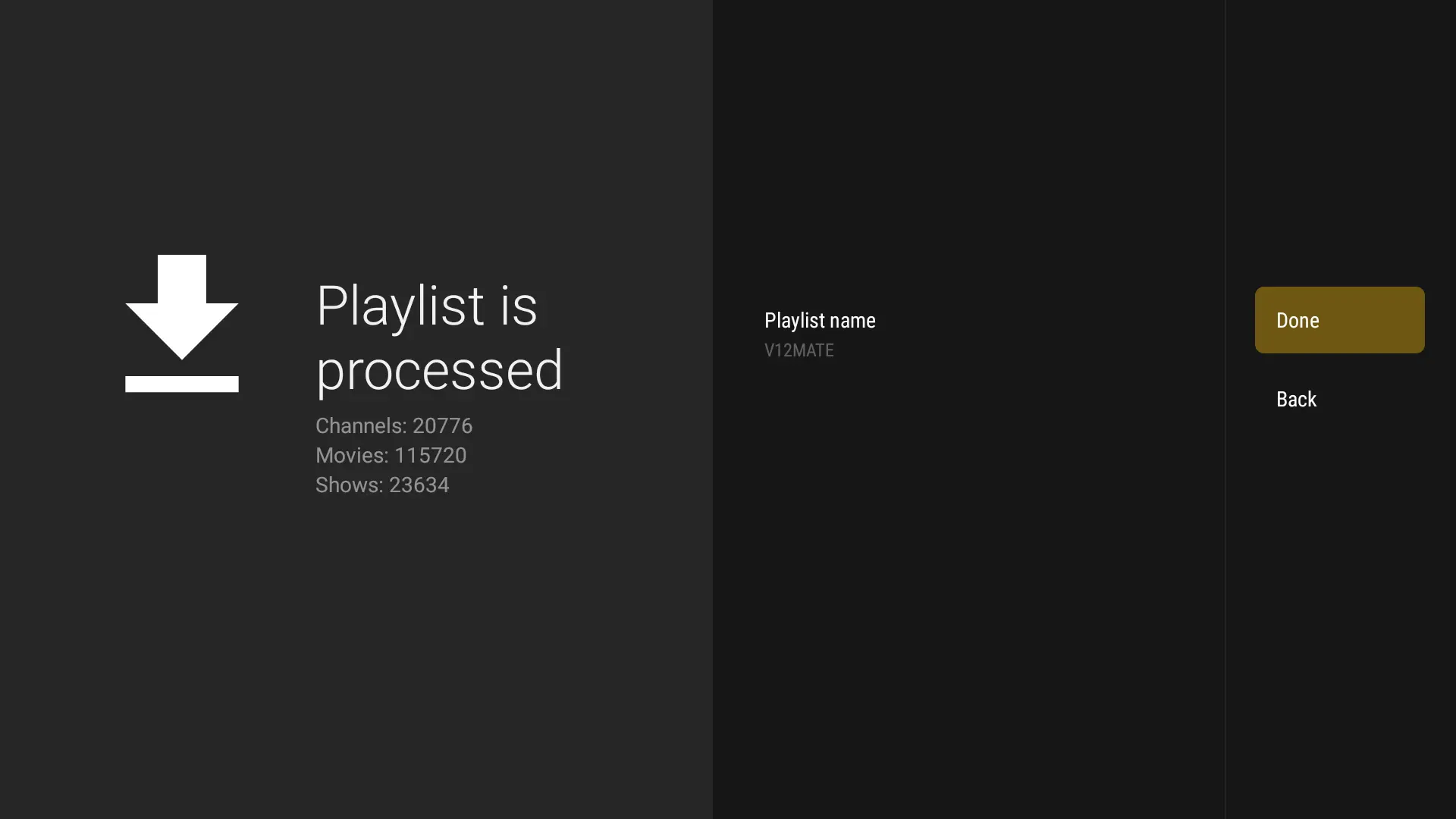
Wait for it to process, (about 1 minute)
-
Press Done, wait few seconds. You're ready to watch!If No Channels Load And Content Count Doesn’t Show, Your Login Details Are Wrong. Go to Settings → Playlists → V12Mate → Xtream Codes Parameters and double-check your username and password, including capital letters. If they’re incorrect, no channels will appear
Méthode 2 : Google Play Store (lecteurs alternatifs recommandés)
-
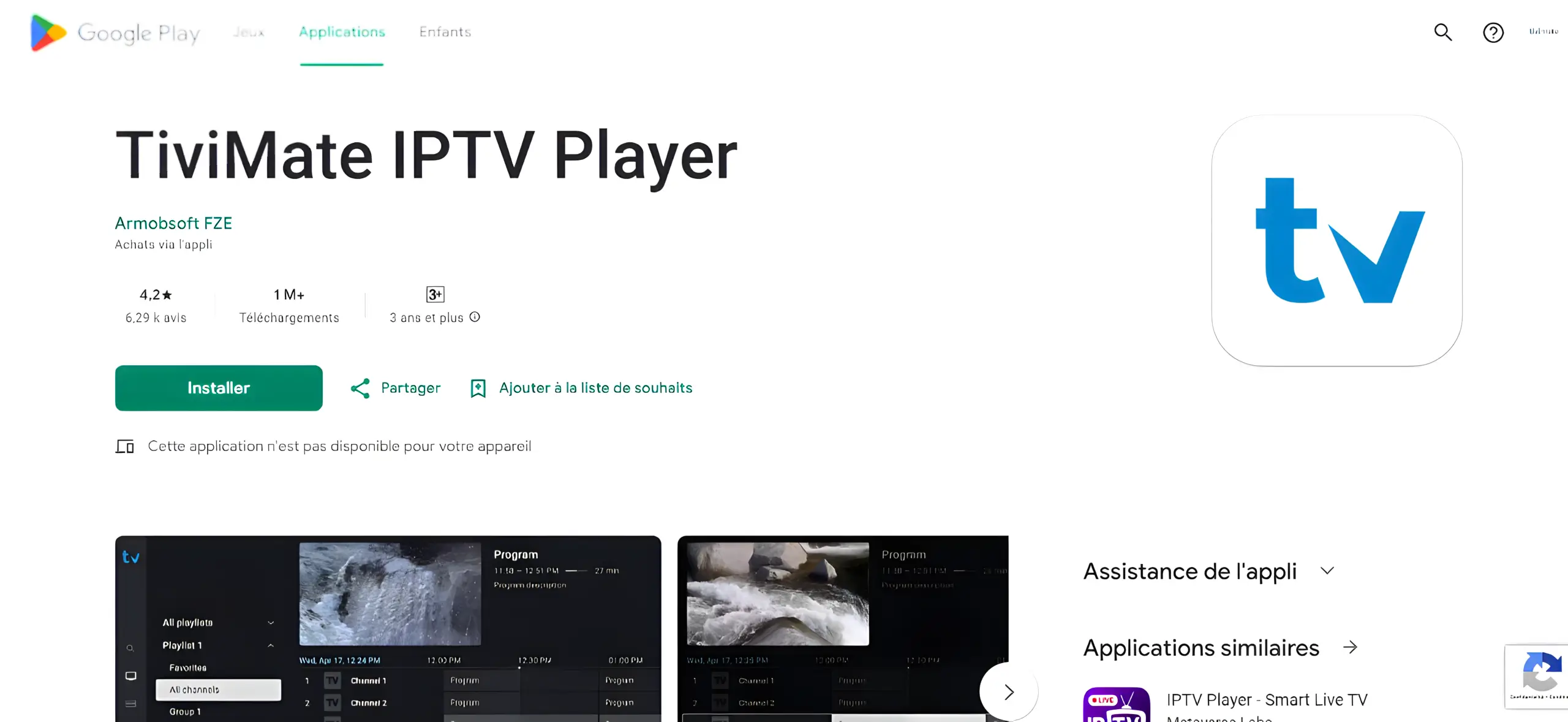
Open Google Play Store on your Android TVVery Important: VOD on TiviMate only works with their Premium. Our service (trial & subscription) already has VOD built in.
-
Search for TiviMate IPTV Player and click Install
-
Open TiviMate, select Add Playlist, choose Xtream Codes
-
Saisissez vos identifiants IPTVV (URL du serveur, nom d'utilisateur, mot de passe)
Foire aux questions
Qu'est-ce que V12Mate et comment fonctionne-t-il ?
V12Mate est-il compatible avec mon appareil Android TV ?
Quels sont les avantages de TiviMate Premium ?
Puis-je utiliser V12Mate avec d'autres fournisseurs ?
TiviMate appartient-il à IPTVV Canada ?
Guide de configuration iPhone, iPad et Apple TV
Avant de continuer
This guide uses a third-party app that we don’t own, sell, or manage. It may need its own license or a premium upgrade to unlock all features, and any such purchase is handled by that app — not by us.
Ces instructions vous sont fournies pour vous aider à connecter votre abonnement.
Méthode 1 : Configuration iMPlayer (Recommandé)
-
Download iMPlayer - IPTV Player from App Store:
Télécharger sur l'App Store
-
Open the app and click on "Add a Playlist"
-
Select playlist type "XC API"
-
Renseignez vos coordonnées :
• Playlist Name: Choose any name you want
• Portal URL: Enter the server URL we sent you by email
• Nom d'utilisateur & Mot de passe: Use the credentials provided in the email -
Click "Add Playlist" wait until contents finish downloading and enjoy streaming!
Méthode 2 : Configuration Smarters Player Lite
Télécharger Smarters Player Lite
-
Open app and tap Add User, select Login with Xtream Codes API

-
Use the login details provided to you after subscribing. Then click on "ADD USER" to continue
-
Patientez quelques instants pendant la validation de vos informations
-
Tap the "Live TV" icon to start watching

-
Sélectionnez la catégorie de chaînes voulue et touchez une chaîne pour la lancer
Foire aux questions
Quelle est la meilleure application pour les appareils iOS ?
Faut-il débrider (jailbreak) mon Apple TV ?
Can I use these apps on Apple TV? ▸
Why is EPG not loading? ▸
Guide de configuration Windows et Mac
Méthode 1 : Configuration IPTV Smarters Pro
-
Open a browser and type "IPTV Smarters Pro" into the search bar
-
Go to the official website: https://www.iptvsmarters.com
-
Click on the "Downloads" section in the website menu

-
Téléchargez la version adaptée à Windows ou Mac

-
Une fois le téléchargement achevé, lancez le fichier d'installation
-
If Windows asks for permission, click "Yes" to allow the app to install
-
The installation will now begin. It typically takes under 2 minutes
-
Once installed, launch the IPTV Smarters app. Click Add New User, then choose "Login with Xtream Codes API"
-
Saisissez les informations de votre compte : Nom d'utilisateur, Mot de passe et URL du portail
-
C'est tout ! Vous êtes prêt à regarder la télévision avec IPTV Smarters Pro
Méthode 2 : Configuration MyIPTV Player (Windows 10/11)
Ce lecteur multimédia performant intègre le guide EPG pour Windows 10/11 et Xbox.
Télécharger depuis le Microsoft Store
-
Go to the Settings tab, then click on "Add new playlist and EPG source"

-
Ajoutez votre liste de lecture M3U :
• Name: Give your playlist a name (e.g. "IPTVV")
• URL: Paste the M3U link you received from your IPTV provider
• Click on Add remote list
-
Go back to Settings and choose your playlist from the Select Channel Playlist dropdown

-
Done! Go to the Channels tab, choose your country, and start watching your favorite TV and VOD content

Foire aux questions
Which app works best on Windows/Mac? ▸
Can I use VLC Player for IPTV? ▸
System requirements for IPTV apps? ▸
Can I record shows on PC/Mac? ▸
Guide de configuration mobile et tablette Android
Avant de continuer
This guide uses a third-party app that we don’t own, sell, or manage. It may need its own license or a premium upgrade to unlock all features, and any such purchase is handled by that app — not by us.
Ces instructions vous sont fournies pour vous aider à connecter votre abonnement.
Méthode 1 : Configuration iMPlayer (Recommandé)
-
Download iMPlayer - IPTV Player from Google Play Store:
Télécharger sur le Google Play Store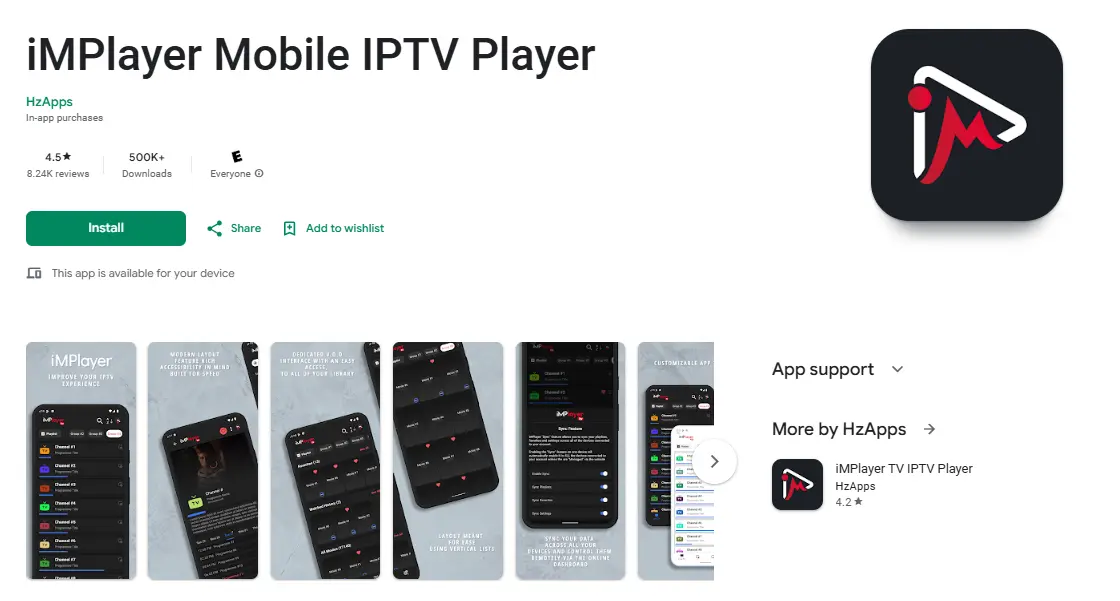
-
Open the app and click on "Add a Playlist"
-
Select playlist type "XC API"
-
Renseignez vos coordonnées :
• Playlist Name: Choose any name you want
• Portal URL: Enter the server URL we sent you by email
• Nom d'utilisateur & Mot de passe: Use the credentials provided in the email -
Click "Add Playlist" wait until contents finish downloading and enjoy streaming!
Méthode 2 : Configuration TiviMate Mobile (Google Play)
-
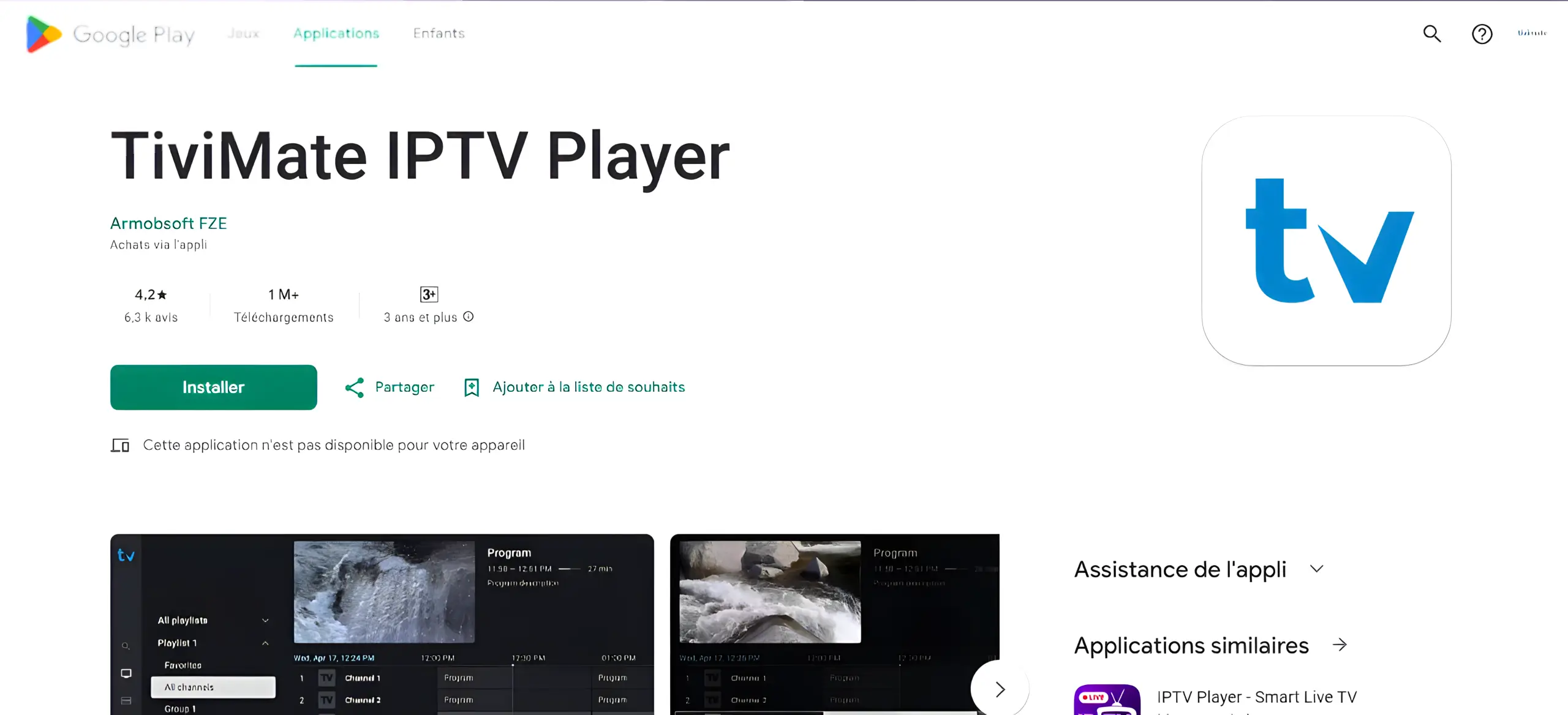
Open Google Play Store and search for TiviMate IPTV PlayerVery Important: VOD on TiviMate only works with their Premium. Our service (trial & subscription) already has VOD built in.
-
Tap Install and wait for completion
-
Open TiviMate, tap Add Playlist
-
Select Xtream Codes or M3U Playlist based on what your provider gave you
-
Enter IPTVV credentials:
• Server: Your provider's server URL
• Nom d'utilisateur: Your username
• Mot de passe: Your password
Then tap Next -
Patientez pendant le chargement des chaînes, puis commencez votre visionnement !
Méthode 3 : Installation de l'APK officiel
Utilisez cette option si TiviMate n'apparaît pas dans le Play Store de votre appareil.
-
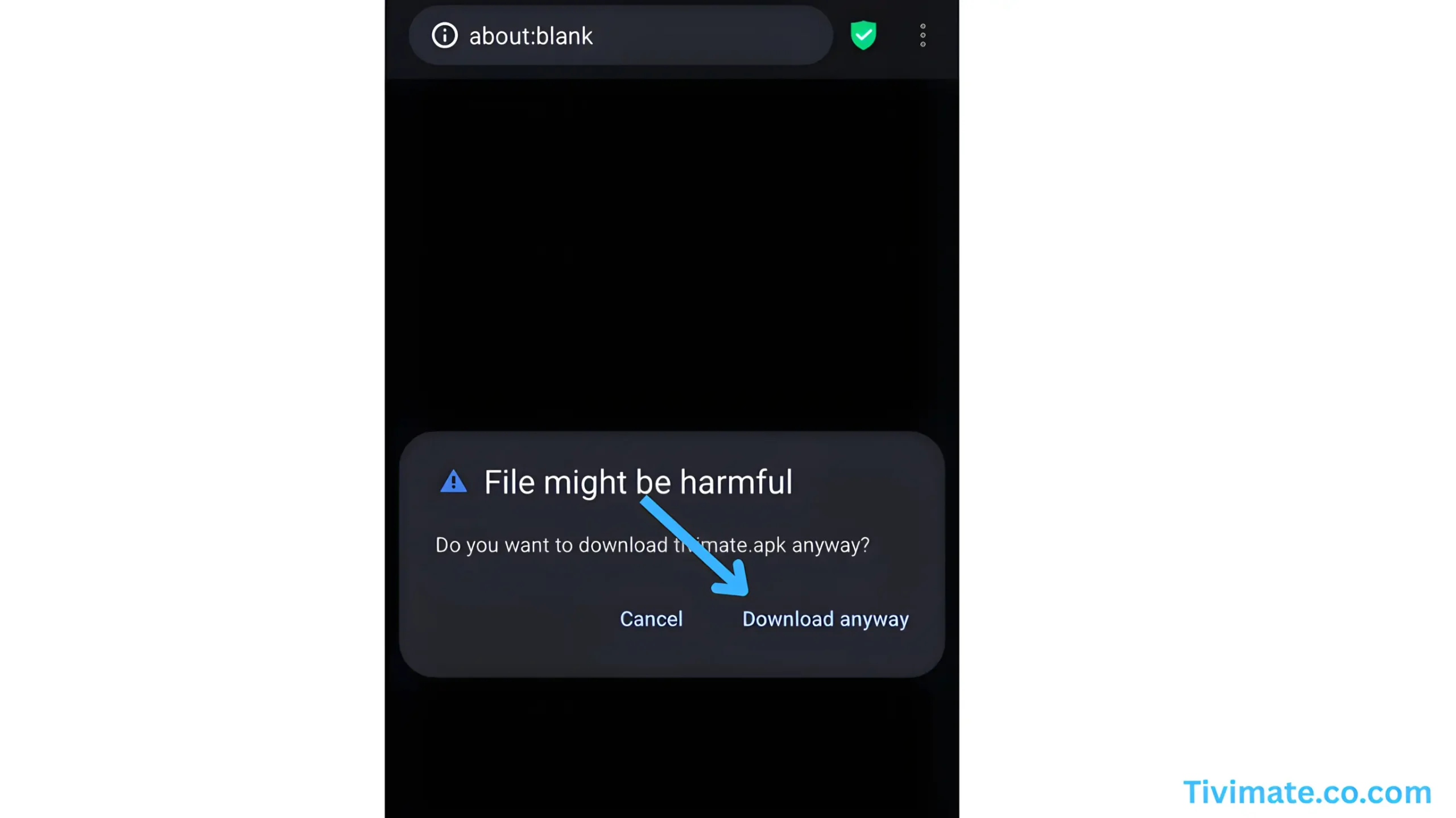
Go to the official site: tivimate.com and download the APK
-
Allow installs from unknown sources if prompted (Settings > Security)
-
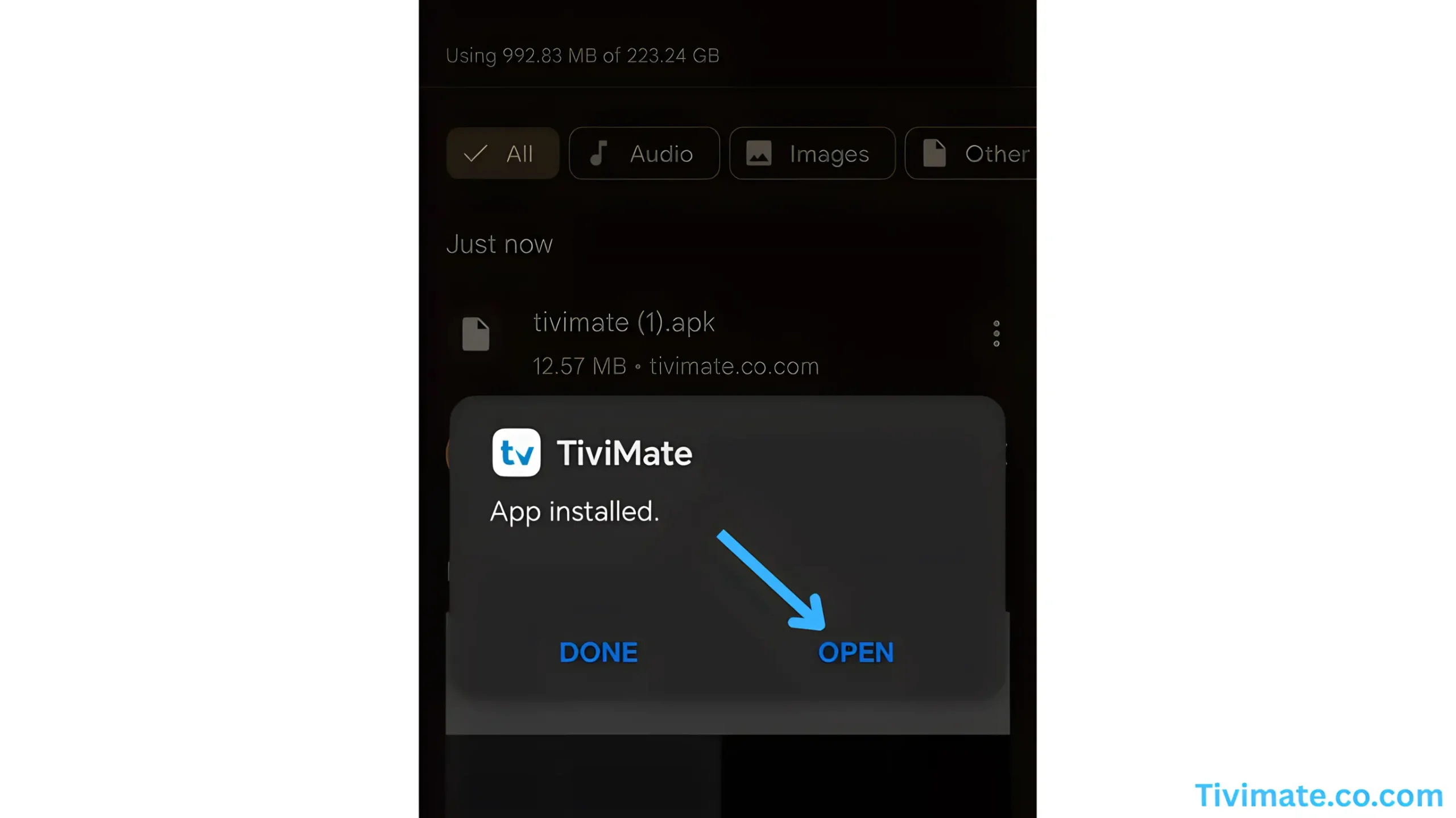
Ouvrez le fichier pour installer TiviMate, puis démarrez l'application
-
Suivez les étapes ci-dessus pour ajouter votre liste IPTV
Foire aux questions
Does TiviMate include channels or an IPTV service? ▸
Why do I see "invalid" when logging into TiviMate? ▸
Free vs Premium - do I need TiviMate Premium? ▸
Best practices to reduce buffering on mobile? ▸
Can I cast to TV from my phone? ▸
What internet speed is recommended? ▸
Guide de configuration appareils Roku
Avant de continuer
This guide uses Hot Player, a third-party app we don’t own or manage. It’s free for 30 days, then you’ll need a license, paid to the app directly, not to us.
As their partner, we’ve included a special 1-year license offer inside this tutorial.
À la fin de la période d'essai du lecteur, seule l'application expire : votre abonnement IPTVV demeure actif.
🔥 Obtenir votre licence Hot Player (1 an)
Hot Player needs a one-time activation. Get your 1-year license from us for CA$14.99 — enter the MAC address shown in the app and your email, and we activate it instantly. The app includes no channels — you use your own IPTV subscription.
Get Hot Player · 1-Year License →Step 1: Search for Hot Player
-
On your Roku device, open the Roku Channel Store
-
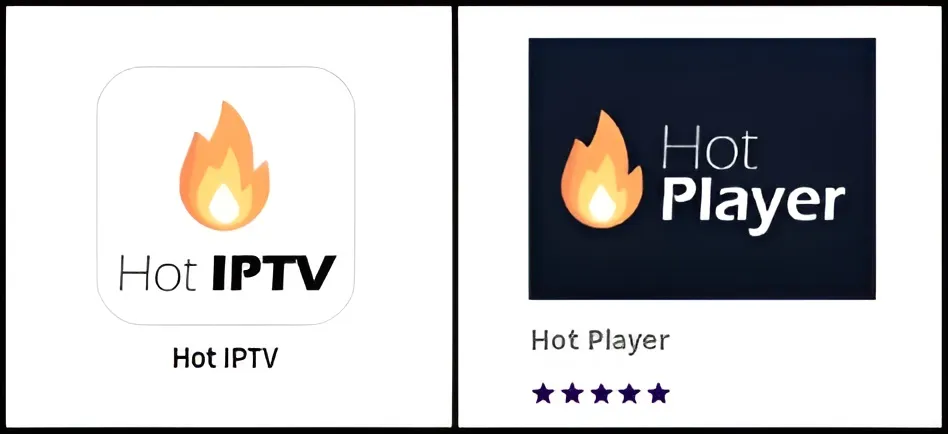
In the search bar, type "Hot IPTV" or "Hot Player"
-
Select Hot Player from the search results
-
Click "Add Channel" to install the app on your Roku device
Step 2: Get Your Device Credentials
-
Open the Hot Player app on your Roku device
-
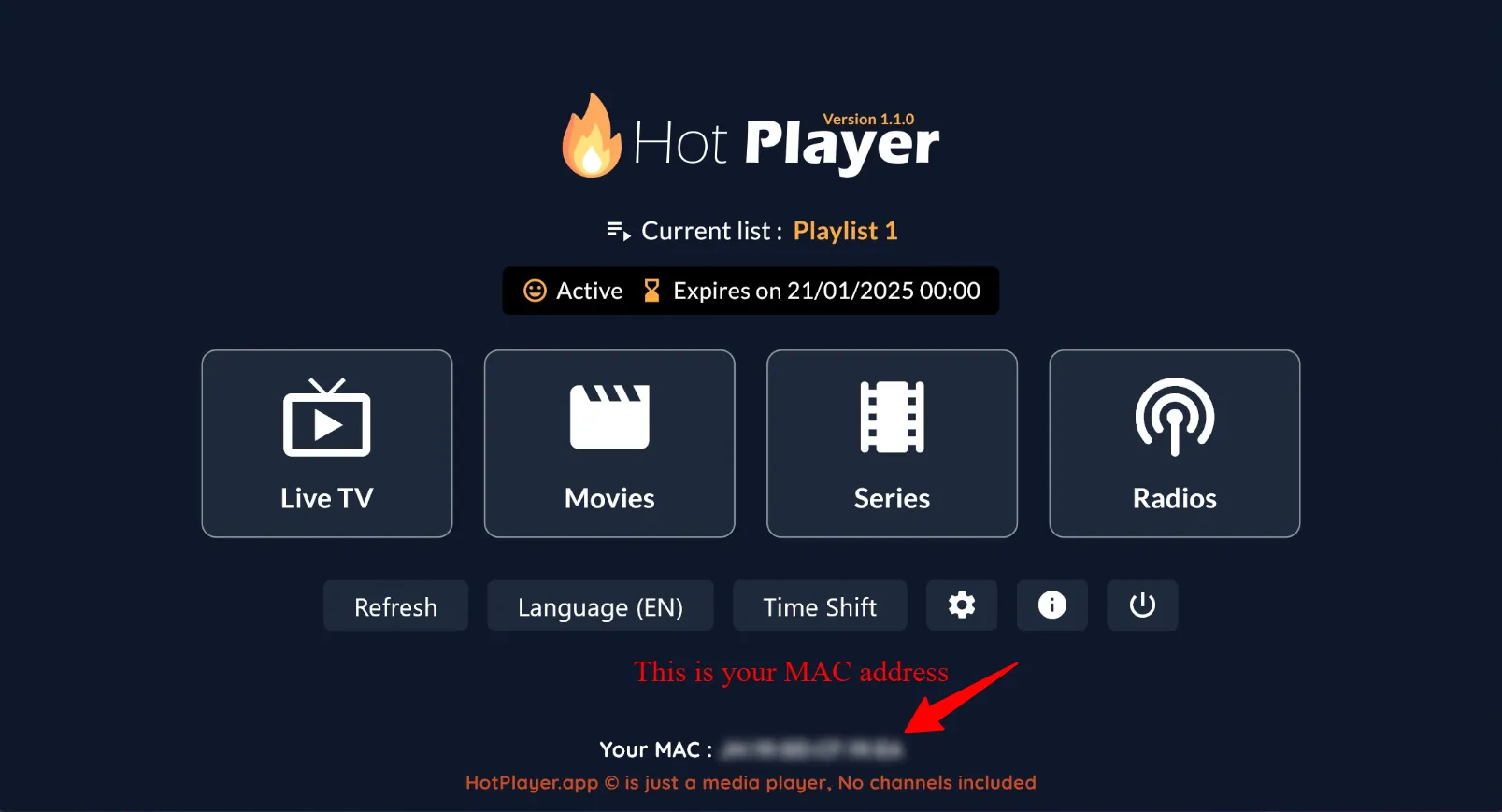
You will see your MAC Address displayed on the screen. Write this down or take a photo - you'll need it for the next step
Activate Your Hot Player License (1 Year)
-
Hot Player needs a one-time activation for your device. Get your 1-year license from us — quick and secure.👉 sekonlineservices.com/hotplayer
Enter the MAC Address from the previous step and your email, pay securely, and we activate it instantly. The app includes no channels — you use your own IPTV subscription.
Step 3: Configure Your Playlist Online
-
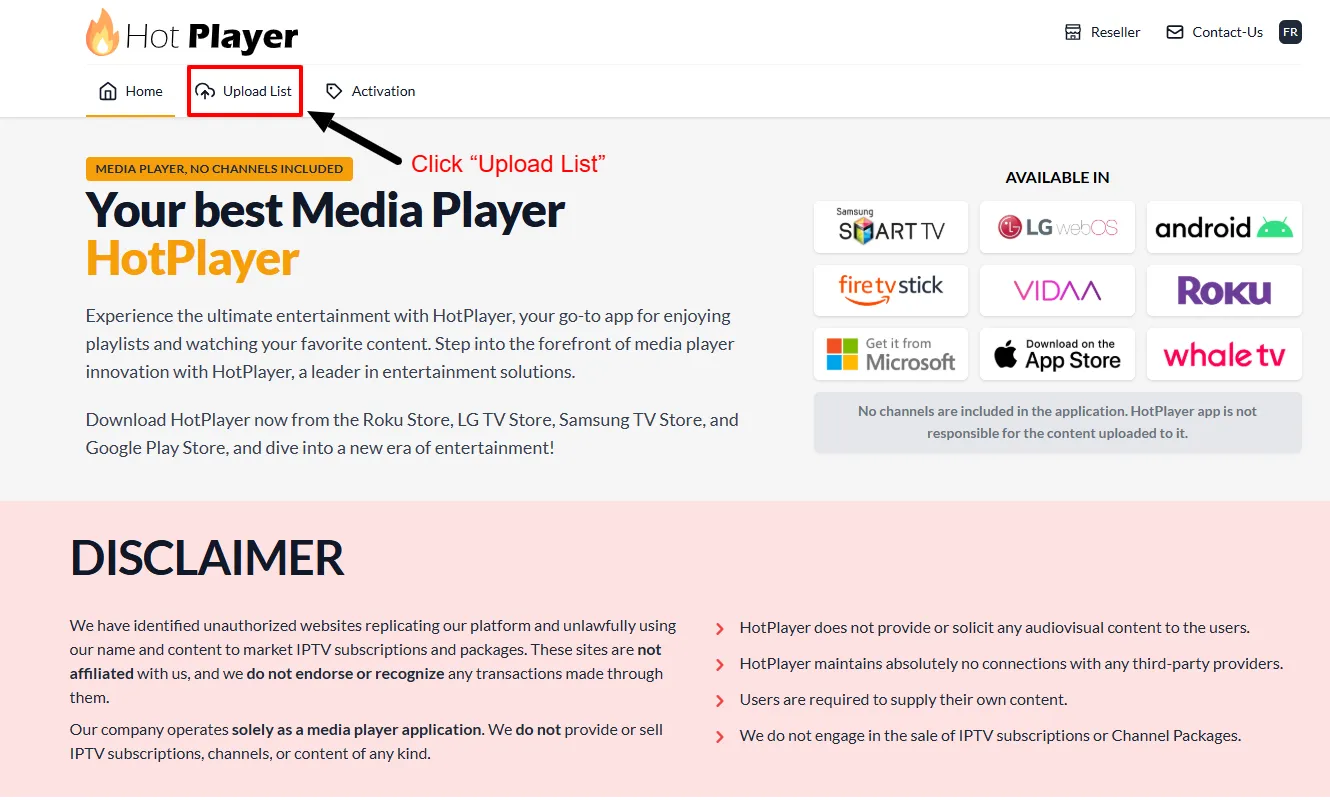
Depuis votre téléphone, tablette ou ordinateur, accédez à : https://hotplayer.app
-
Click on "Upload List" in the menu
-
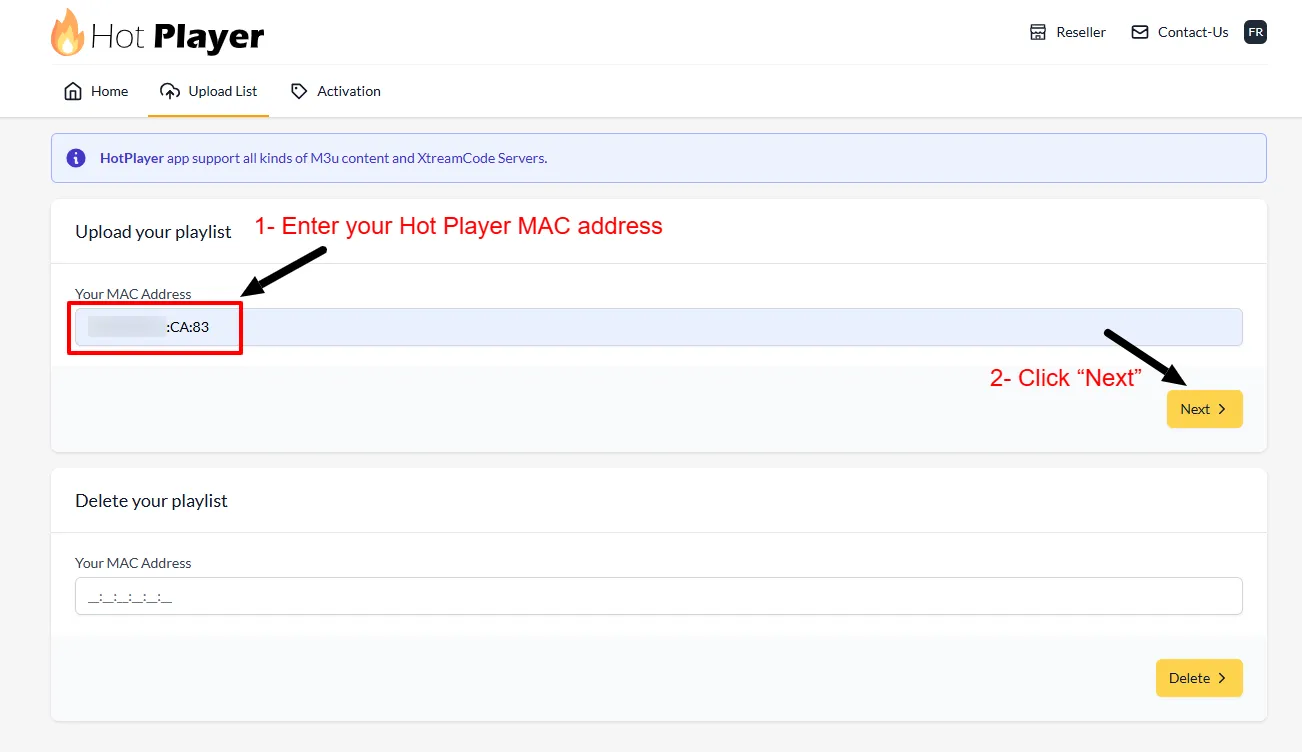
Enter the MAC Address from your Roku device, then click "Next"
-
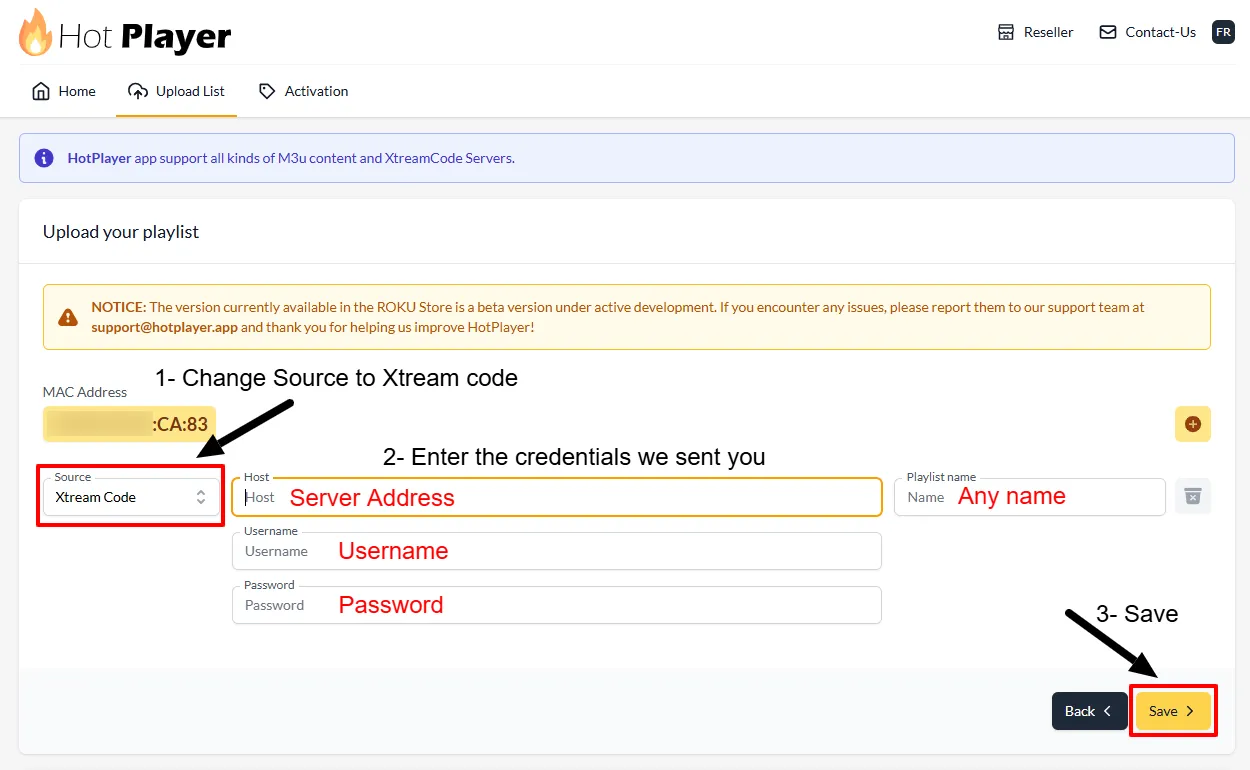
Change Source to "Xtream Code"
-
Renseignez vos identifiants IPTV :
• Playlist Name: Enter any name you want (e.g., "My IPTV")
• Host: Your Server Address
• Nom d'utilisateur: Your IPTV username
• Mot de passe: Your IPTV password
Then click "Save" -
Return to your Roku device click Refresh or restart the Hot Player app
-
Your IPTV channels should now load. You're ready to start watching!
Foire aux questions
Where do I find the MAC Address on my Roku? ▸
What if Hot Player isn't available in my region or Roku device? ▸
How much does Hot Player cost? ▸
Can I use multiple playlists on one Roku device? ▸
Why are my channels not loading? ▸
Which Roku devices support Hot Player? ▸
Guide téléviseurs intelligents – Toutes marques
Avant de continuer
This guide uses Hot Player, a third-party app we don’t own or manage. It’s free for 30 days, then you’ll need a license, paid to the app directly, not to us.
As their partner, we’ve included a special 1-year license offer inside this tutorial.
À la fin de la période d'essai du lecteur, seule l'application expire : votre abonnement IPTVV demeure actif.
🔥 Obtenir votre licence Hot Player (1 an)
Hot Player needs a one-time activation. Get your 1-year license from us for CA$14.99 — enter the MAC address shown in the app and your email, and we activate it instantly. The app includes no channels — you use your own IPTV subscription.
Get Hot Player · 1-Year License →Step 1: Search for Hot Player
-
On your Smart TV, open your App Store (LG Content Store, Samsung Apps, etc.)
-
In the search bar, type "Hot IPTV" or "Hot Player"
-
Select Hot Player from the search results
-
Click "Install" or "Download" to install the app on your Smart TV
Step 2: Get Your Device Credentials
-
Open the Hot Player app on your Smart TV
-
You will see your MAC Address displayed on the screen. Write this down or take a photo - you'll need it for the next step
Activate Your Hot Player License (1 Year)
-
Hot Player needs a one-time activation for your device. Get your 1-year license from us — quick and secure.👉 sekonlineservices.com/hotplayer
Enter the MAC Address from the previous step and your email, pay securely, and we activate it instantly. The app includes no channels — you use your own IPTV subscription.
Step 3: Configure Your Playlist Online
-
Depuis votre téléphone, tablette ou ordinateur, accédez à : https://hotplayer.app
-
Click on "Upload List" in the menu
-
Enter the MAC Address from your Smart TV, then click "Next"
-
Change Source to "Xtream Code"
-
Renseignez vos identifiants IPTV :
• Playlist Name: Enter any name you want (e.g., "My IPTV")
• Host: Your Server Address
• Nom d'utilisateur: Your IPTV username
• Mot de passe: Your IPTV password
Then click "Save" -
Return to your Smart TV click Refresh or restart the Hot Player app
-
Your IPTV channels should now load. You're ready to start watching!
Foire aux questions
Where do I find the MAC Address on my Smart TV? ▸
What if Hot Player isn't available in my region or TV brand? ▸
How much does Hot Player cost? ▸
Can I use multiple playlists on one Smart TV? ▸
Why are my channels not loading? ▸
Which Smart TV brands support Hot Player? ▸
Guide de configuration boîtiers BuzzTV
Méthode 1 : Connexion Xtream Codes / XC API (Recommandé)
-
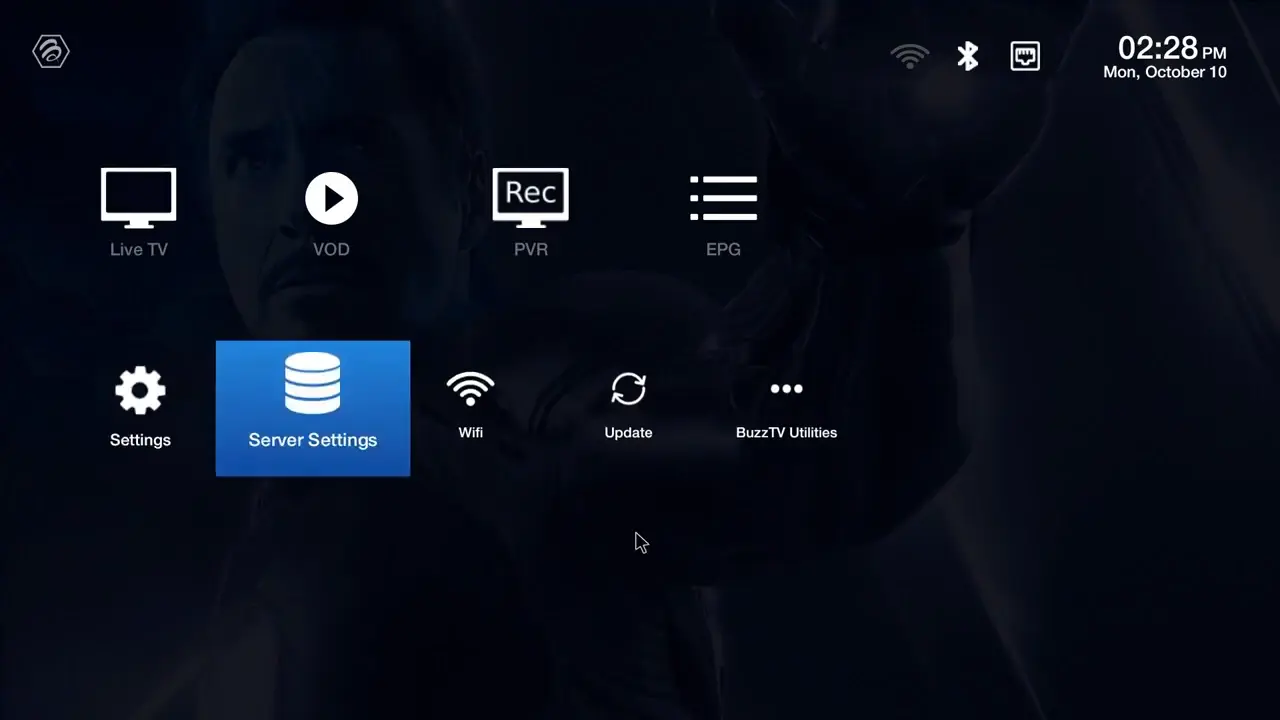
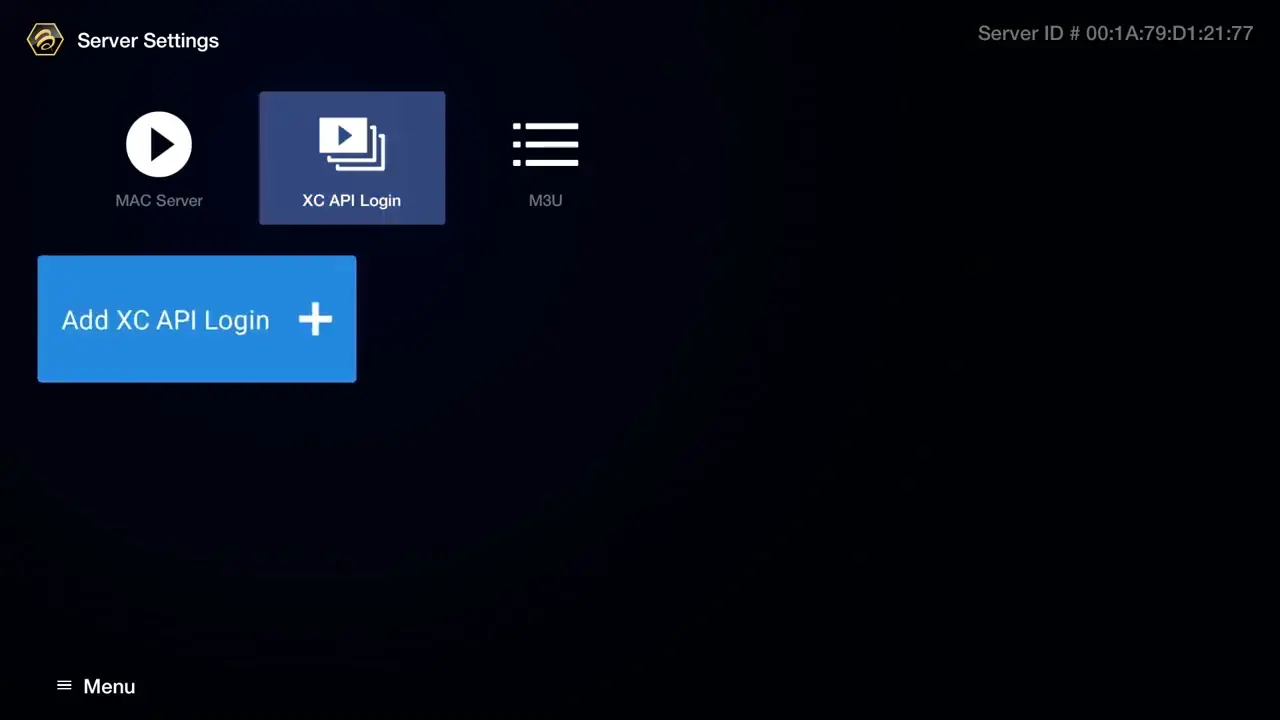
From your BuzzTV home screen, navigate to Server Settings
-
Select XC API Login → Add XC API Login
-
Configurez votre connexion Xtream Codes :
• Portal Name: Enter any name (e.g., "My IPTV")
• Portal URL: Enter your server URL
• User name: Enter your IPTV username
• Mot de passe: Enter your IPTV password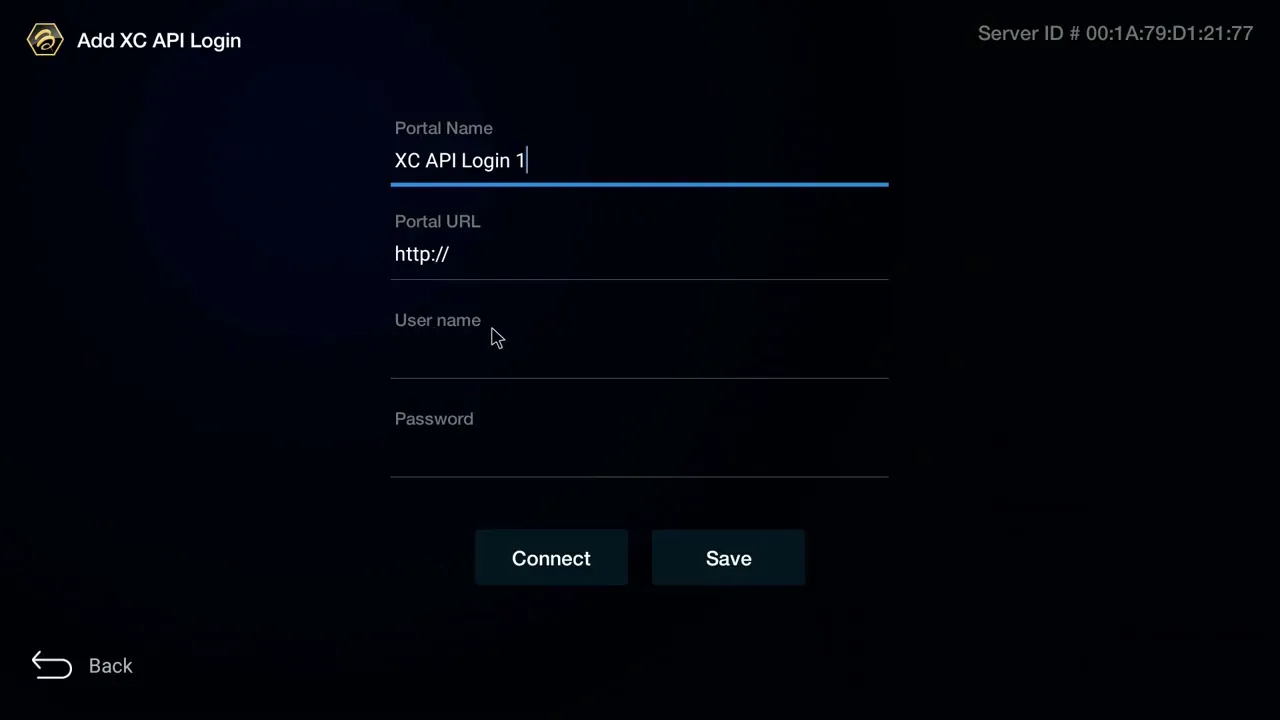
-
Press "Connect" or "Save" to establish the connection
-
Return to home screen and select Live TV to start watching!
Foire aux questions
What's the difference between XC API Login and MAC Server? ▸
Which method should I use? ▸
Why won't my channels load? ▸
Can I use multiple IPTV services on BuzzTV? ▸
Guide de configuration boîtiers Formuler et Dreamlink
Formuler Z: MyTVOnline 2 & 3
-
Open MyTVOnline 2 or 3 from your Formuler home screen
-
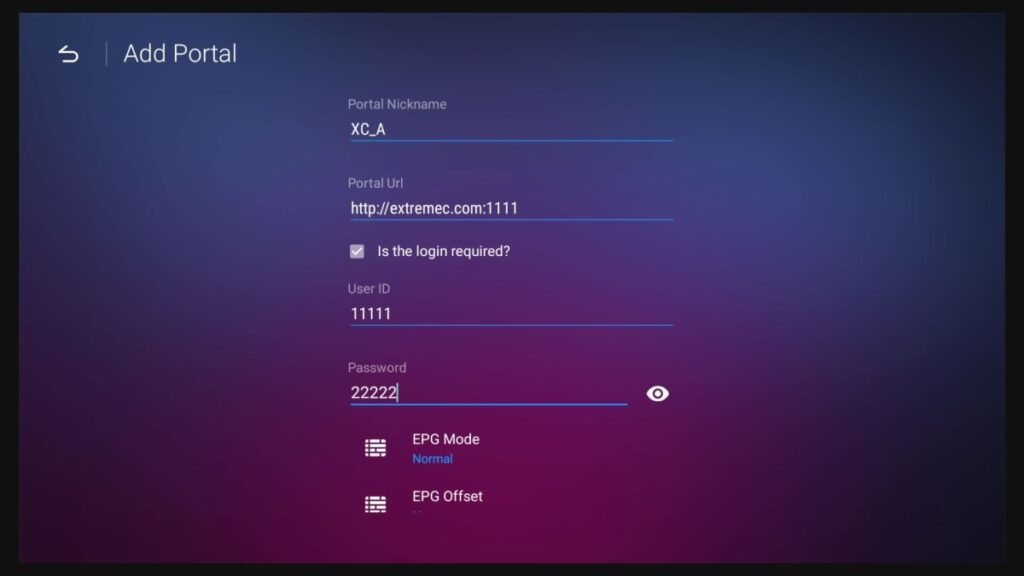
Navigate to Menu → Connections → Add Portal
-
Configurez votre connexion Xtream Codes :
• Portal Name: Enter any name (e.g., "My IPTV")
• Portal URL: Enter your server URL
• Login Required: Enable this option
• Nom d'utilisateur: Enter your IPTV username
• Mot de passe: Enter your IPTV password -
Press "Connect" to establish the connection
-
Vos chaînes se synchronisent. Vous êtes prêt pour le visionnement !
Dreamlink: DOL2 App
-
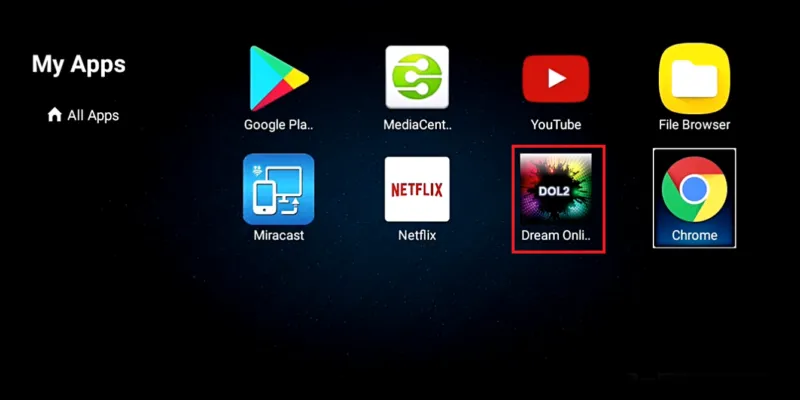
Open DOL2 App from your Dreamlink home screen
-
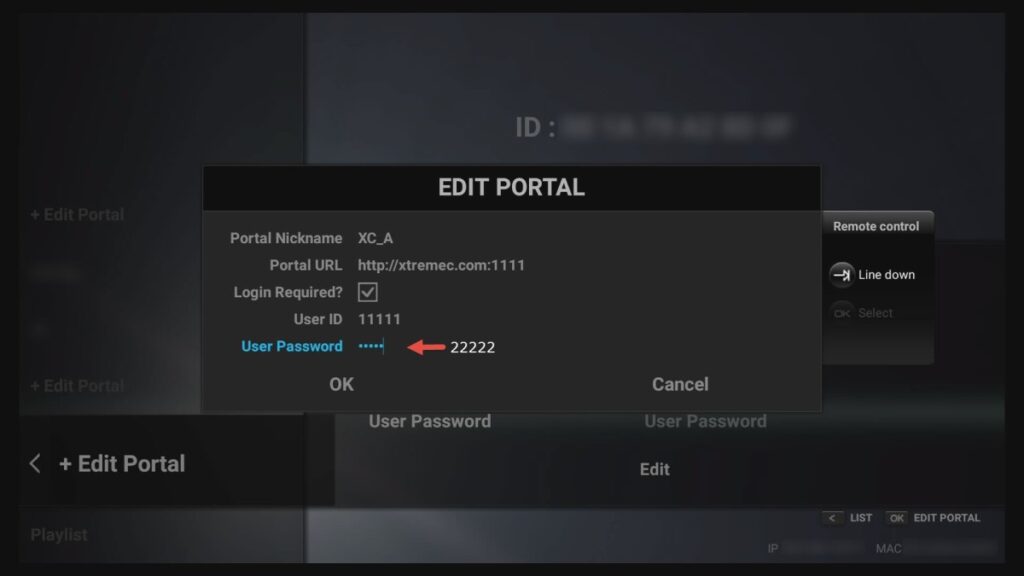
Go to Menu → Portals → Edit Portal
-
Renseignez la configuration de votre portail :
• Portal Title: Any name you prefer
• Portal URL: Your IPTV server URL
• Login Required: Yes, activate this
• Nom d'utilisateur: Your credentials
• Mot de passe: Your credentials -
Enregistrez la configuration et redémarrez l'application pour vous connecter
Portal: http://iptv-server.com
Nom d'utilisateur: abcdef
Mot de passe: 123456